> ## Documentation Index
> Fetch the complete documentation index at: https://docs.b-bot.space/llms.txt
> Use this file to discover all available pages before exploring further.
# Apps
> Connect Composio apps and MCP servers to an Agent
# Apps
Apps give the selected Agent access to external actions and events. Open **Apps** from the sidebar after selecting an Agent.
 ## Browse apps
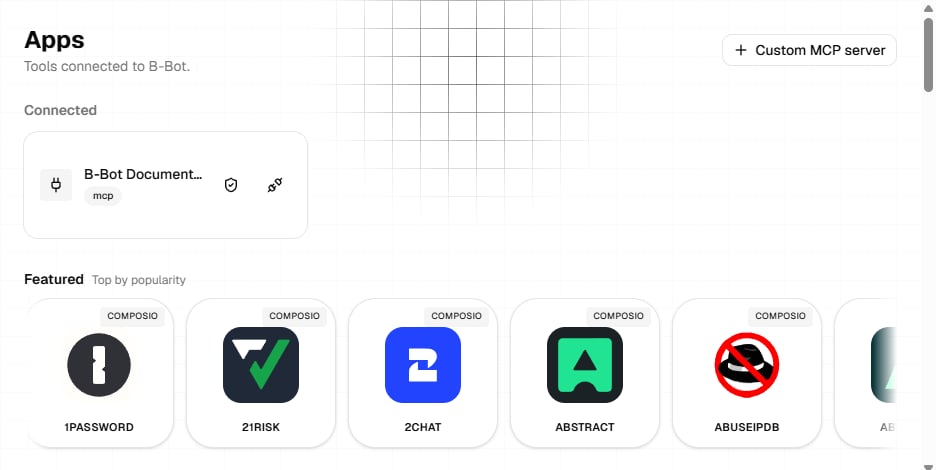
The Apps page combines Composio integrations and MCP servers in one catalog:
* **Connected** shows integrations already attached to the selected Agent.
* **Featured** and **Trending** provide ranked recommendations.
* **All apps** supports search, category and MCP health filters, card or tile views, and incremental loading.
Catalog cards identify whether an entry comes from Composio or MCP. MCP entries can also show their verification state.
## Connect a Composio app
Select a Composio entry from Featured, Trending, or All apps.
Open **Capabilities** to inspect the available actions and triggers.
In **Connect**, start the provider's OAuth flow or enter the credential fields shown by the app.
After connecting, use the **Test** tab for a quick chat with the Agent and confirm that it can call the app.
Select a connected Composio app to reopen its details. Use **Reconnect** when its authorization needs to be replaced. Use the disconnect button on its Connected card to remove it from the Agent.
## Connect an MCP server
MCP entries open a test workspace before you connect them. You can:
* Edit the server URL.
* Choose `streamable_http` or `sse` transport.
* Add or remove request headers.
* Load the server's live tool list.
* Select a tool, provide JSON arguments, and run a quick tool test.
* Chat with the Agent while the MCP tools are available for the test.
When the test succeeds, connect the MCP server to the selected Agent.
### Add a custom MCP server
Select **Custom MCP** on the Apps page. Enter a name and URL, choose `streamable_http` or `sse`, and add any required header name and value pairs. Select **Connect** to save it.
Treat header values as credentials. Use only trusted MCP servers and provide the minimum access they require.
## Control app permissions
On a Connected card, select the permissions button to configure the app for the current Agent.
* **App enabled** turns the whole integration on or off without disconnecting it.
* **Allowed** controls whether the Agent may call an individual action.
* **Requires approval** pauses an allowed action for human approval before execution.
* **Apply recommended** enables approval for actions marked as recommended by the catalog.
* **Clear approvals** removes all approval requirements without changing which actions are allowed.
Disallowing an action also removes its approval requirement. Review write and destructive actions carefully, then save the permission changes.
Verify the saved policy in the test chat: an allowed action should succeed, a disallowed action should be unavailable, and an approval-gated action should pause for review.
## Related guides
Use connected app actions and events in automated workflows.
## Browse apps
The Apps page combines Composio integrations and MCP servers in one catalog:
* **Connected** shows integrations already attached to the selected Agent.
* **Featured** and **Trending** provide ranked recommendations.
* **All apps** supports search, category and MCP health filters, card or tile views, and incremental loading.
Catalog cards identify whether an entry comes from Composio or MCP. MCP entries can also show their verification state.
## Connect a Composio app
Select a Composio entry from Featured, Trending, or All apps.
Open **Capabilities** to inspect the available actions and triggers.
In **Connect**, start the provider's OAuth flow or enter the credential fields shown by the app.
After connecting, use the **Test** tab for a quick chat with the Agent and confirm that it can call the app.
Select a connected Composio app to reopen its details. Use **Reconnect** when its authorization needs to be replaced. Use the disconnect button on its Connected card to remove it from the Agent.
## Connect an MCP server
MCP entries open a test workspace before you connect them. You can:
* Edit the server URL.
* Choose `streamable_http` or `sse` transport.
* Add or remove request headers.
* Load the server's live tool list.
* Select a tool, provide JSON arguments, and run a quick tool test.
* Chat with the Agent while the MCP tools are available for the test.
When the test succeeds, connect the MCP server to the selected Agent.
### Add a custom MCP server
Select **Custom MCP** on the Apps page. Enter a name and URL, choose `streamable_http` or `sse`, and add any required header name and value pairs. Select **Connect** to save it.
Treat header values as credentials. Use only trusted MCP servers and provide the minimum access they require.
## Control app permissions
On a Connected card, select the permissions button to configure the app for the current Agent.
* **App enabled** turns the whole integration on or off without disconnecting it.
* **Allowed** controls whether the Agent may call an individual action.
* **Requires approval** pauses an allowed action for human approval before execution.
* **Apply recommended** enables approval for actions marked as recommended by the catalog.
* **Clear approvals** removes all approval requirements without changing which actions are allowed.
Disallowing an action also removes its approval requirement. Review write and destructive actions carefully, then save the permission changes.
Verify the saved policy in the test chat: an allowed action should succeed, a disallowed action should be unavailable, and an approval-gated action should pause for review.
## Related guides
Use connected app actions and events in automated workflows.