> ## Documentation Index
> Fetch the complete documentation index at: https://docs.b-bot.space/llms.txt
> Use this file to discover all available pages before exploring further.
# Distribution Channels
> Publish an Agent through supported Hub channels
# Distribution Channels
Distribution channels publish the selected Agent for a specific audience or use case. Open **Channels** from the sidebar to view, create, edit, or delete channels.
 ## Create a channel
Choose the Agent that the channel will publish.
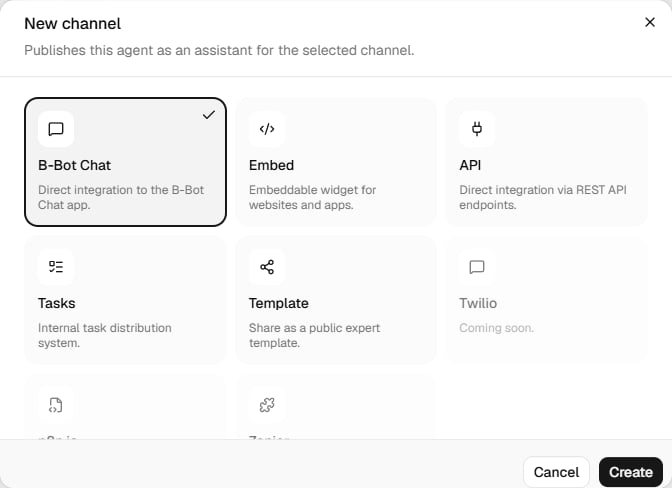
Go to `/channels` and select **New channel**.
Enter a channel name, then select one of the available channel types.
Complete the controls shown for that channel. After saving, the channel appears with its channel ID and edit and delete controls.
The creation dialog currently supports **B-Bot Chat**, **Embed**, **API**, **Tasks**, and **Template**. **Twilio**, **n8n**, and **Zapier** are visible as coming soon and cannot be selected.
## B-Bot Chat
B-Bot Chat publishes the Agent in B-Bot Chat. Its visibility controls are:
* **Company only**, which limits access to one company.
* **Company**, which selects that company when company-only access is enabled.
If no companies are available, company-only access is disabled.
## Embed
Embed creates a website experience and provides a live preview and generated code after the channel is saved.
You can configure:
* System tools: **Memory Search**, **Web Search**, **File Manager / Upload**, **Workspace Tools**, and **Task Scheduler**.
* Whether tool calls are shown.
* **Blank** or **Bubble** embed style.
* Theme color.
* A Lucide header icon.
* A custom image URL for the bubble launcher.
* Optional password protection.
Save the channel before using its preview or copying its generated embed code. Edit the channel later to change these settings.
## API
The API channel exposes the Agent for programmatic use. The channel dialog controls which knowledge write actions are disabled:
* Edit single line
* Edit multiple lines
* Create document
The dialog does not display or generate example API endpoints. Use the API reference provided for your deployment when implementing a client.
## Tasks
The Tasks channel distributes the Agent to task execution. The current channel dialog has no additional Tasks-specific controls.
See [Tasks](/essentials/tasks) for task setup and operation.
## Template
Template publishes the Agent as a reusable template. Configure:
* A template category.
* Whether the template is marked as featured.
The dialog also lists the Agent's connected apps so you can review the resources associated with the template.
## Manage existing channels
Each saved channel card shows its name, type, and channel ID. You can copy the ID, edit the channel, or delete it. Embed channels also provide a shortcut to copy the generated embed code.
Connect the tools an Agent needs before publishing it.
## Create a channel
Choose the Agent that the channel will publish.
Go to `/channels` and select **New channel**.
Enter a channel name, then select one of the available channel types.
Complete the controls shown for that channel. After saving, the channel appears with its channel ID and edit and delete controls.
The creation dialog currently supports **B-Bot Chat**, **Embed**, **API**, **Tasks**, and **Template**. **Twilio**, **n8n**, and **Zapier** are visible as coming soon and cannot be selected.
## B-Bot Chat
B-Bot Chat publishes the Agent in B-Bot Chat. Its visibility controls are:
* **Company only**, which limits access to one company.
* **Company**, which selects that company when company-only access is enabled.
If no companies are available, company-only access is disabled.
## Embed
Embed creates a website experience and provides a live preview and generated code after the channel is saved.
You can configure:
* System tools: **Memory Search**, **Web Search**, **File Manager / Upload**, **Workspace Tools**, and **Task Scheduler**.
* Whether tool calls are shown.
* **Blank** or **Bubble** embed style.
* Theme color.
* A Lucide header icon.
* A custom image URL for the bubble launcher.
* Optional password protection.
Save the channel before using its preview or copying its generated embed code. Edit the channel later to change these settings.
## API
The API channel exposes the Agent for programmatic use. The channel dialog controls which knowledge write actions are disabled:
* Edit single line
* Edit multiple lines
* Create document
The dialog does not display or generate example API endpoints. Use the API reference provided for your deployment when implementing a client.
## Tasks
The Tasks channel distributes the Agent to task execution. The current channel dialog has no additional Tasks-specific controls.
See [Tasks](/essentials/tasks) for task setup and operation.
## Template
Template publishes the Agent as a reusable template. Configure:
* A template category.
* Whether the template is marked as featured.
The dialog also lists the Agent's connected apps so you can review the resources associated with the template.
## Manage existing channels
Each saved channel card shows its name, type, and channel ID. You can copy the ID, edit the channel, or delete it. Embed channels also provide a shortcut to copy the generated embed code.
Connect the tools an Agent needs before publishing it.