> ## Documentation Index
> Fetch the complete documentation index at: https://docs.b-bot.space/llms.txt
> Use this file to discover all available pages before exploring further.
# Edit Expert
> Customize and configure your AI expert with all available options
# Edit Your Expert
The Edit Expert interface provides full access to all customization options for your expert. Access it by clicking the **edit** button on any expert card in the Expert Manager.
 ## Edit Expert Tabs
The Edit Expert modal contains 8 tabs for comprehensive configuration:
| Tab | Purpose |
| --------------------- | ------------------------------------------------- |
| **Basic Information** | Name, profession, description, preferred provider |
| **Profile Picture** | Upload, AI-generate, or URL for profile image |
| **Abilities** | Define specific behaviors and "wake words" |
| **Templates** | Pre-written conversation starters |
| **Models** | Main AI model and input/output modalities |
| **App Connections** | View and manage connected apps |
| **Team** | Add other experts to collaborate |
| **Overview** | Review all settings at a glance |
***
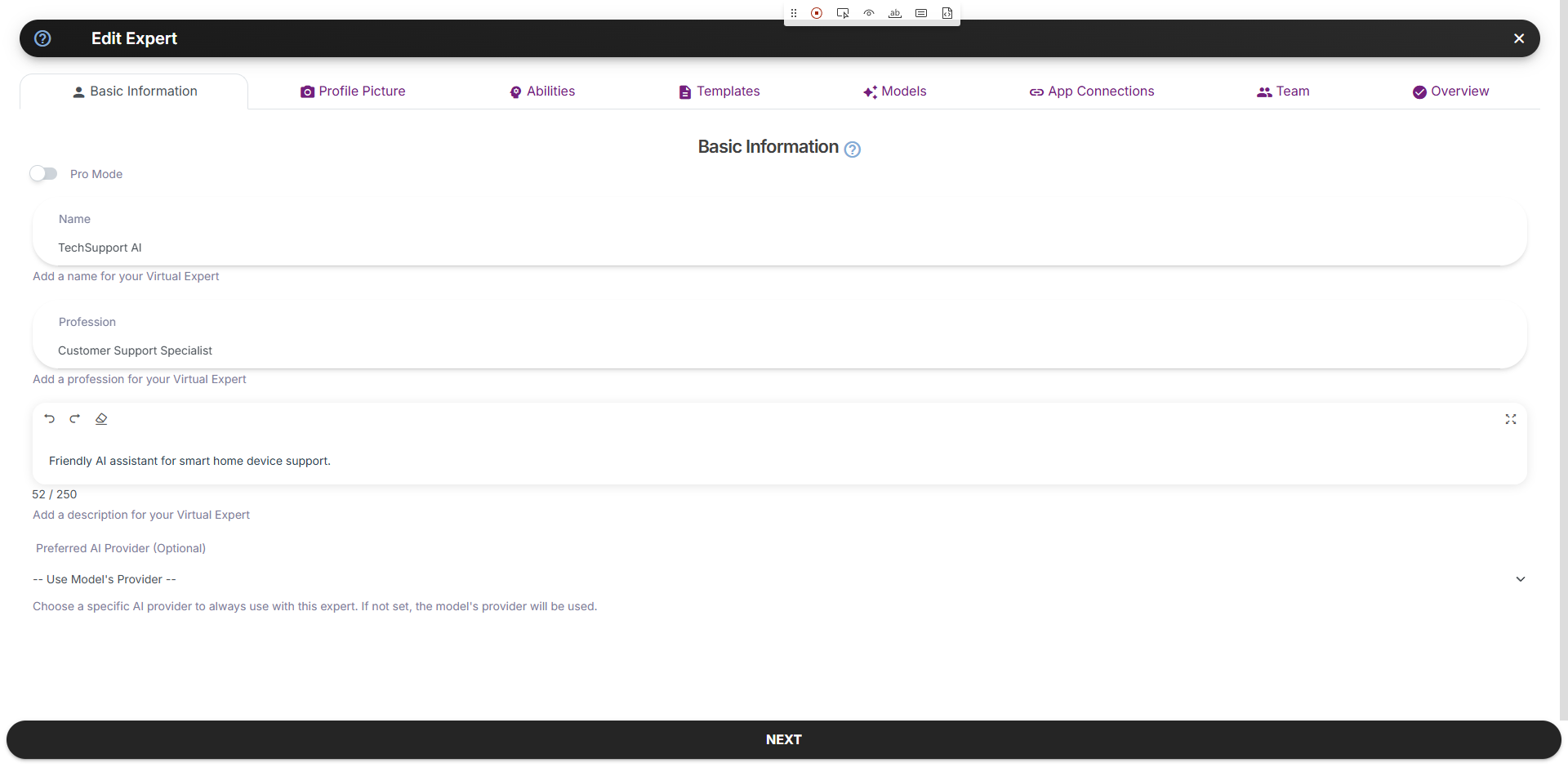
## Basic Information
Edit the core identity of your expert:
* **Name** - Display name shown in chat and expert cards
* **Profession** - Role or specialty
* **Description** - Brief explanation of expert's purpose
* **Preferred AI Provider** - Lock to a specific provider (optional)
***
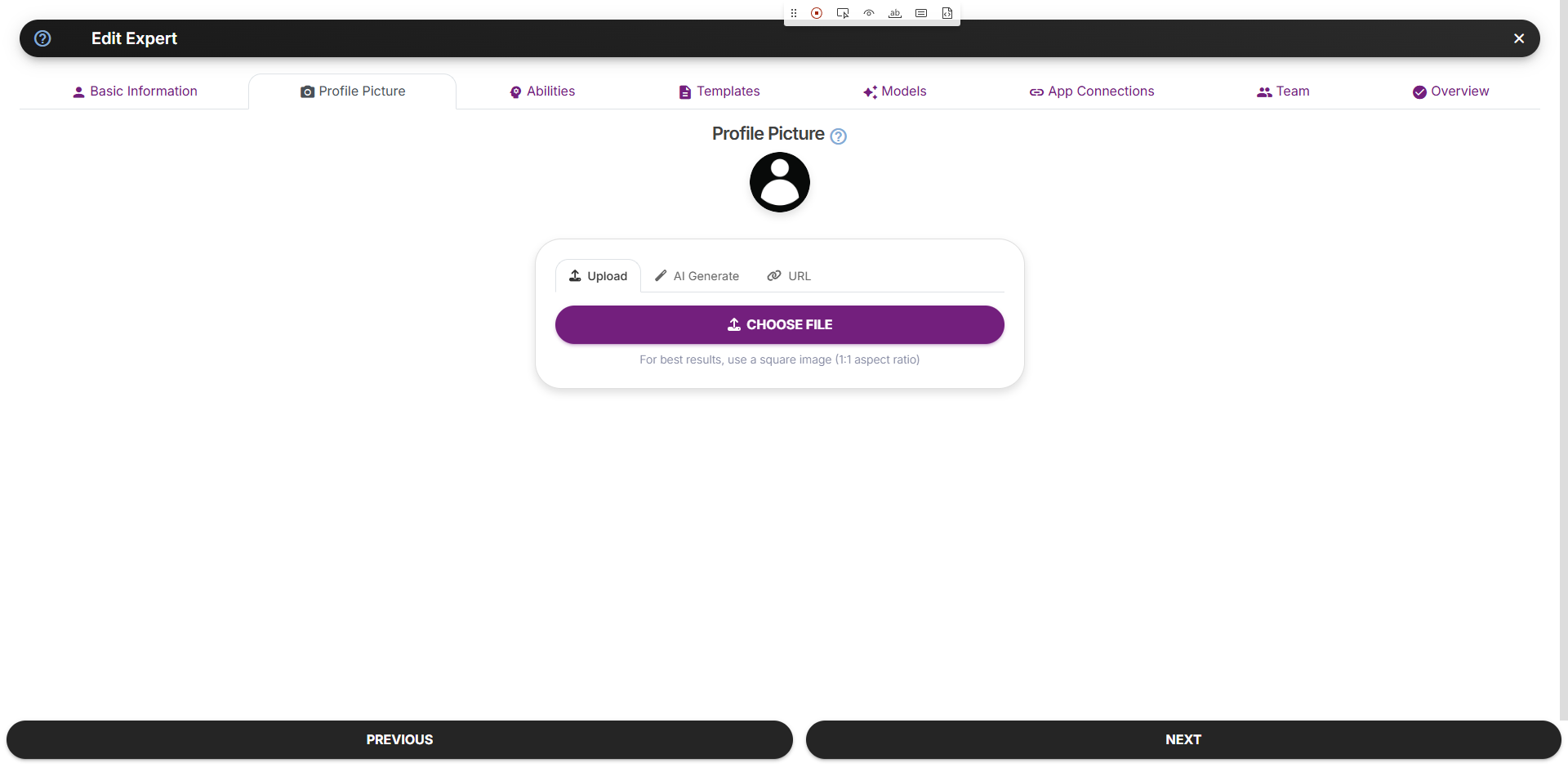
## Profile Picture
Three ways to set your expert's avatar:
Upload from your computer (1:1 ratio recommended)
Generate with AI - select type and describe appearance
Paste a direct image URL
## Edit Expert Tabs
The Edit Expert modal contains 8 tabs for comprehensive configuration:
| Tab | Purpose |
| --------------------- | ------------------------------------------------- |
| **Basic Information** | Name, profession, description, preferred provider |
| **Profile Picture** | Upload, AI-generate, or URL for profile image |
| **Abilities** | Define specific behaviors and "wake words" |
| **Templates** | Pre-written conversation starters |
| **Models** | Main AI model and input/output modalities |
| **App Connections** | View and manage connected apps |
| **Team** | Add other experts to collaborate |
| **Overview** | Review all settings at a glance |
***
## Basic Information
Edit the core identity of your expert:
* **Name** - Display name shown in chat and expert cards
* **Profession** - Role or specialty
* **Description** - Brief explanation of expert's purpose
* **Preferred AI Provider** - Lock to a specific provider (optional)
***
## Profile Picture
Three ways to set your expert's avatar:
Upload from your computer (1:1 ratio recommended)
Generate with AI - select type and describe appearance
Paste a direct image URL
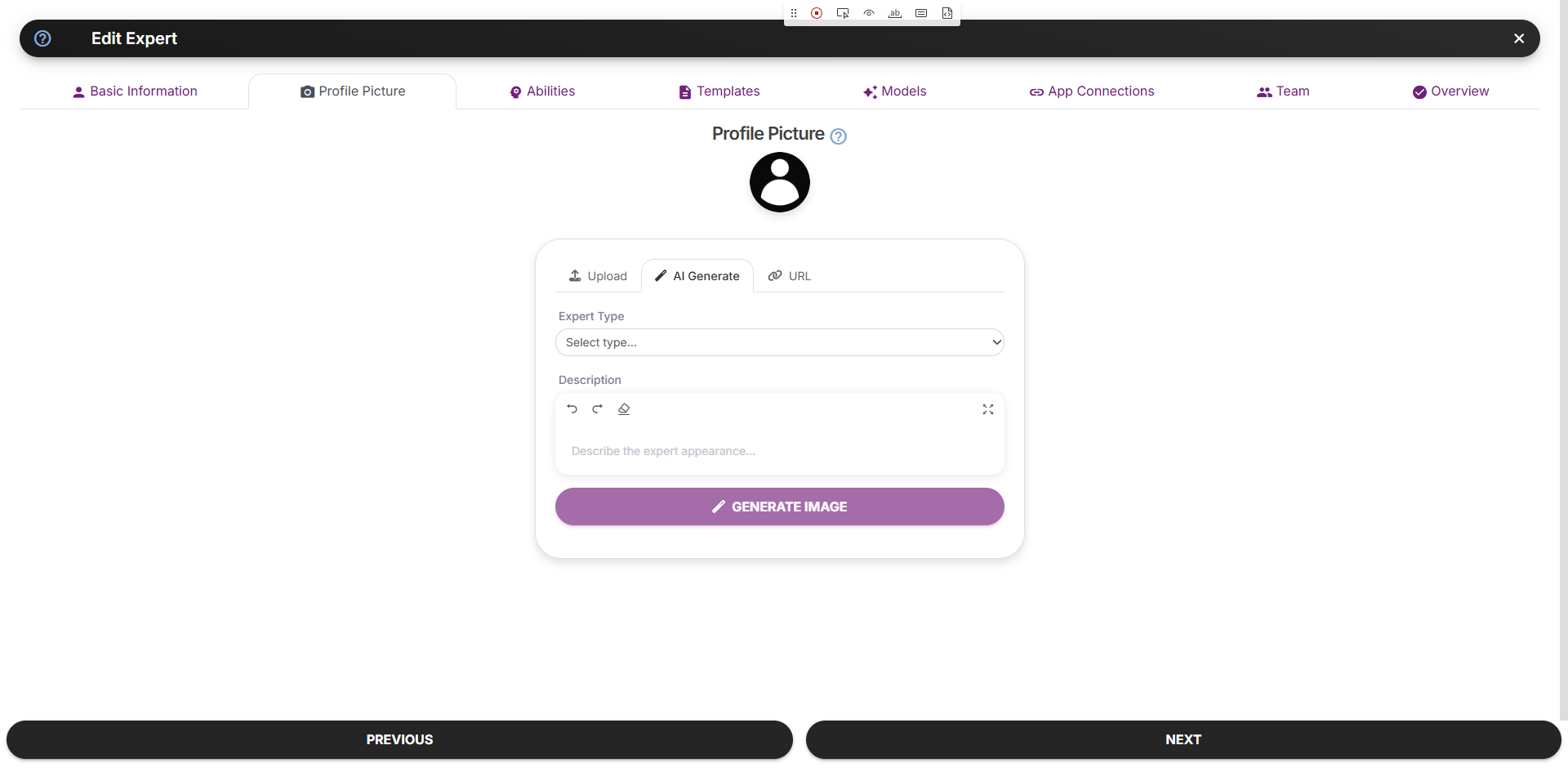
 ### AI Generation
1. Select **Expert Type** (Technology, Marketing, Healthcare, etc.)
2. Enter a description of desired appearance
3. Click **Generate Image**
4. Select from generated options
### AI Generation
1. Select **Expert Type** (Technology, Marketing, Healthcare, etc.)
2. Enter a description of desired appearance
3. Click **Generate Image**
4. Select from generated options
 ***
## Abilities
Abilities are specific behaviors your expert can activate. They act as "wake words" for the model.
***
## Abilities
Abilities are specific behaviors your expert can activate. They act as "wake words" for the model.
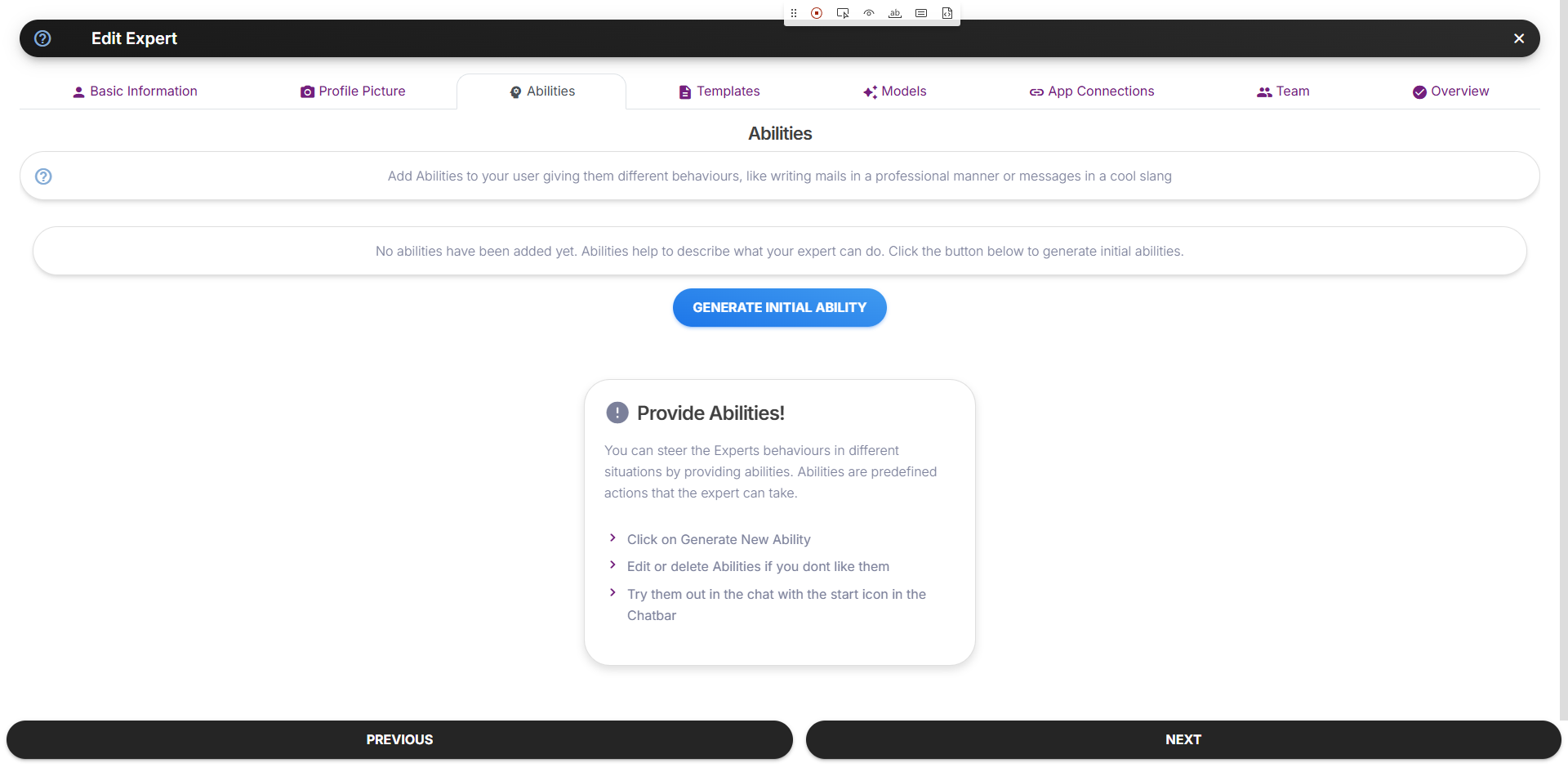 ### Adding Abilities
* Click **Generate Initial Ability** for AI-suggested abilities
* Or manually add abilities with clear, short descriptions
* Edit or delete abilities as needed
### Good Ability Examples
| ✅ Good | ❌ Avoid |
| -------------------------------------- | ------------------------- |
| "Provide step-by-step troubleshooting" | Long paragraphs |
| "Write in a friendly, casual tone" | Vague instructions |
| "Focus on technical accuracy" | Multiple behaviors in one |
***
## Templates
Templates are pre-written prompts users can click to start conversations.
### Adding Abilities
* Click **Generate Initial Ability** for AI-suggested abilities
* Or manually add abilities with clear, short descriptions
* Edit or delete abilities as needed
### Good Ability Examples
| ✅ Good | ❌ Avoid |
| -------------------------------------- | ------------------------- |
| "Provide step-by-step troubleshooting" | Long paragraphs |
| "Write in a friendly, casual tone" | Vague instructions |
| "Focus on technical accuracy" | Multiple behaviors in one |
***
## Templates
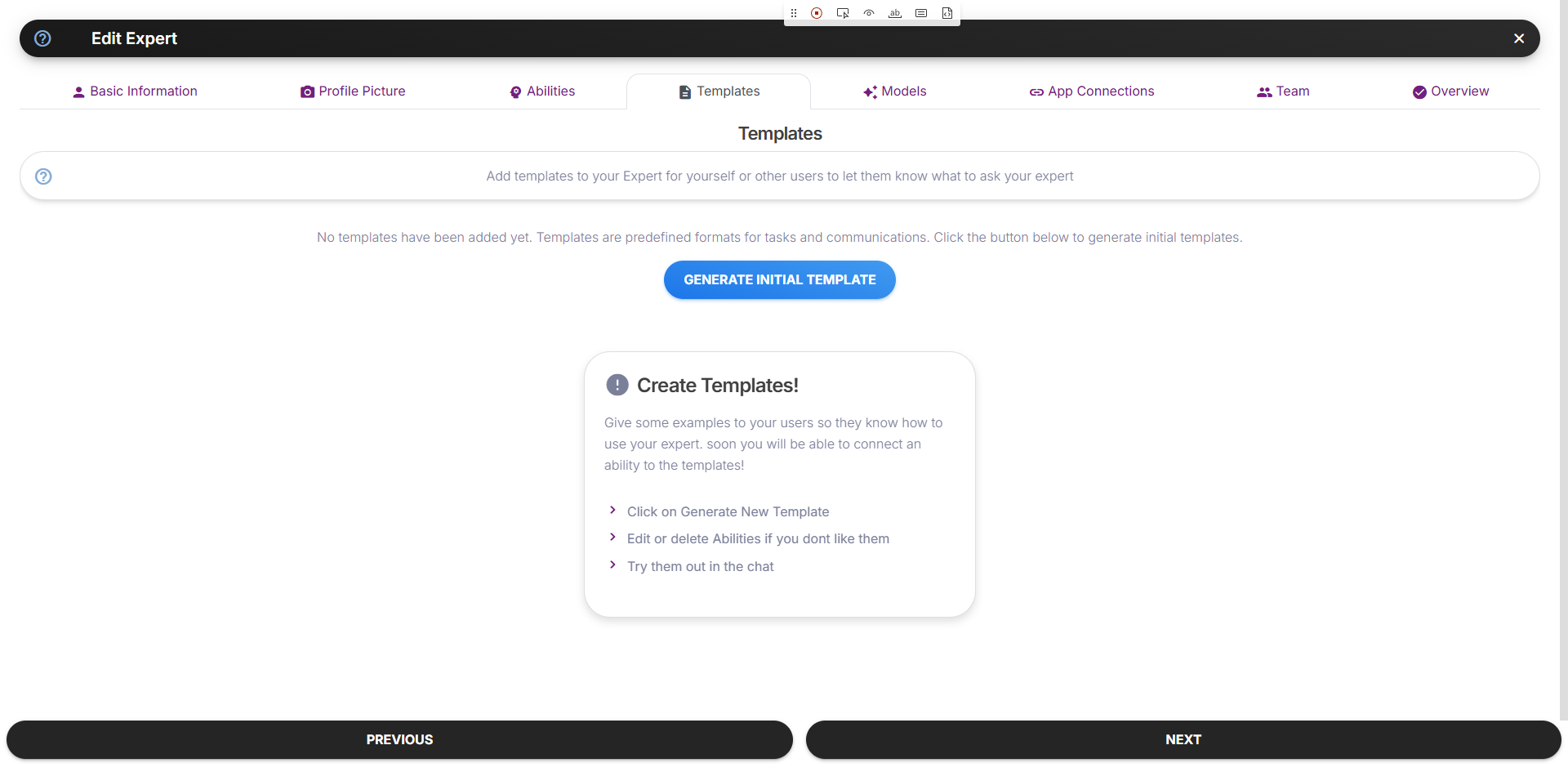
Templates are pre-written prompts users can click to start conversations.
 ### Adding Templates
* Click **Generate Initial Template** for AI suggestions
* Each template has a title and prompt text
* Templates appear as clickable buttons in chat
### Template Tips
* Show what your expert can do
* Cover common use cases
* Keep prompts specific and actionable
***
## Models & Modalities
Configure your expert's AI capabilities:
### Adding Templates
* Click **Generate Initial Template** for AI suggestions
* Each template has a title and prompt text
* Templates appear as clickable buttons in chat
### Template Tips
* Show what your expert can do
* Cover common use cases
* Keep prompts specific and actionable
***
## Models & Modalities
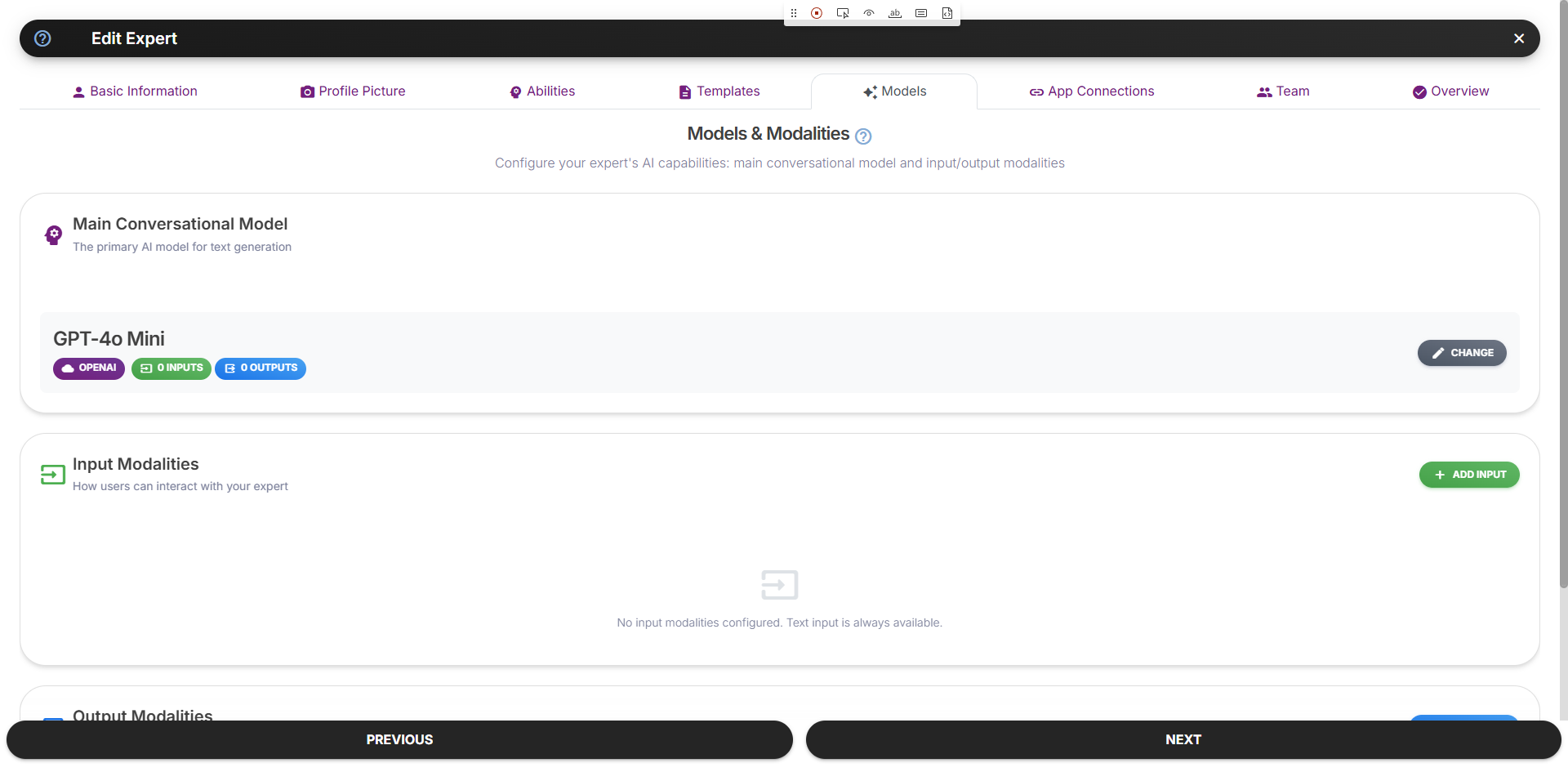
Configure your expert's AI capabilities:
 ### Main Conversational Model
* Click **Change** to select a different AI model
* Options include GPT-4o, GPT-4o-mini, Claude, Gemini, etc.
* Each model shows provider, input/output counts
### Input Modalities
Configure how users can interact:
* Voice input (speech-to-text)
* File uploads
* Image analysis
### Output Modalities
Configure how your expert responds:
* Text-to-speech voices
* Audio output settings
See Input & Output Modalities for detailed configuration
***
## App Connections
View and manage apps connected to your expert.
### Main Conversational Model
* Click **Change** to select a different AI model
* Options include GPT-4o, GPT-4o-mini, Claude, Gemini, etc.
* Each model shows provider, input/output counts
### Input Modalities
Configure how users can interact:
* Voice input (speech-to-text)
* File uploads
* Image analysis
### Output Modalities
Configure how your expert responds:
* Text-to-speech voices
* Audio output settings
See Input & Output Modalities for detailed configuration
***
## App Connections
View and manage apps connected to your expert.
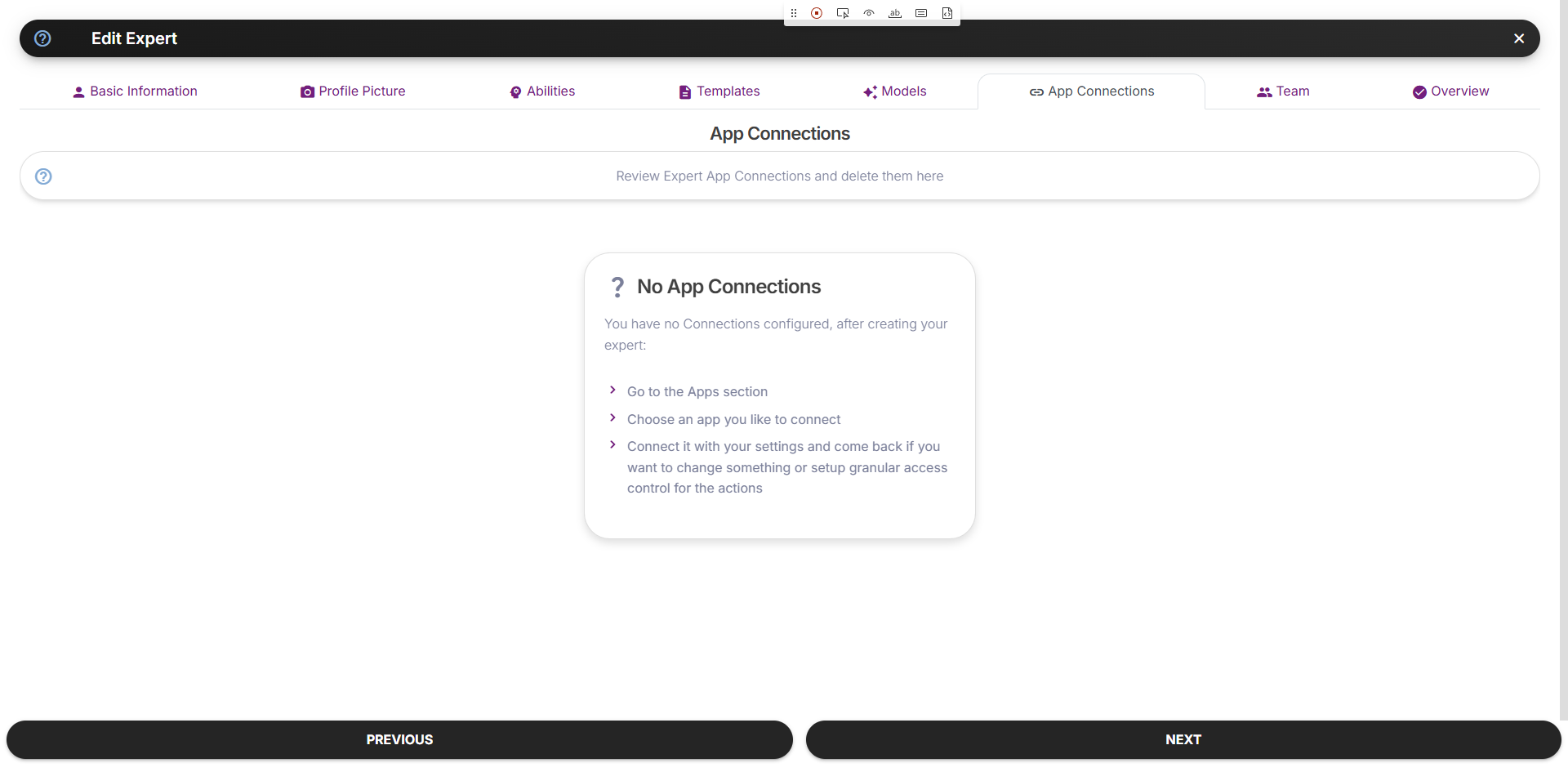 **Note:** App connections are created in the **Apps** section (`/apps`), not here. This tab only shows existing connections for review and removal.
### To Connect Apps
1. Go to **Apps** in the sidebar
2. Browse or search for an app
3. Click **Connect** and configure settings
4. The connection will appear in Edit Expert → App Connections
Learn how to connect apps to your expert
***
## Team
Create multi-agent collaboration by adding other experts to your expert's team.
**Note:** App connections are created in the **Apps** section (`/apps`), not here. This tab only shows existing connections for review and removal.
### To Connect Apps
1. Go to **Apps** in the sidebar
2. Browse or search for an app
3. Click **Connect** and configure settings
4. The connection will appear in Edit Expert → App Connections
Learn how to connect apps to your expert
***
## Team
Create multi-agent collaboration by adding other experts to your expert's team.
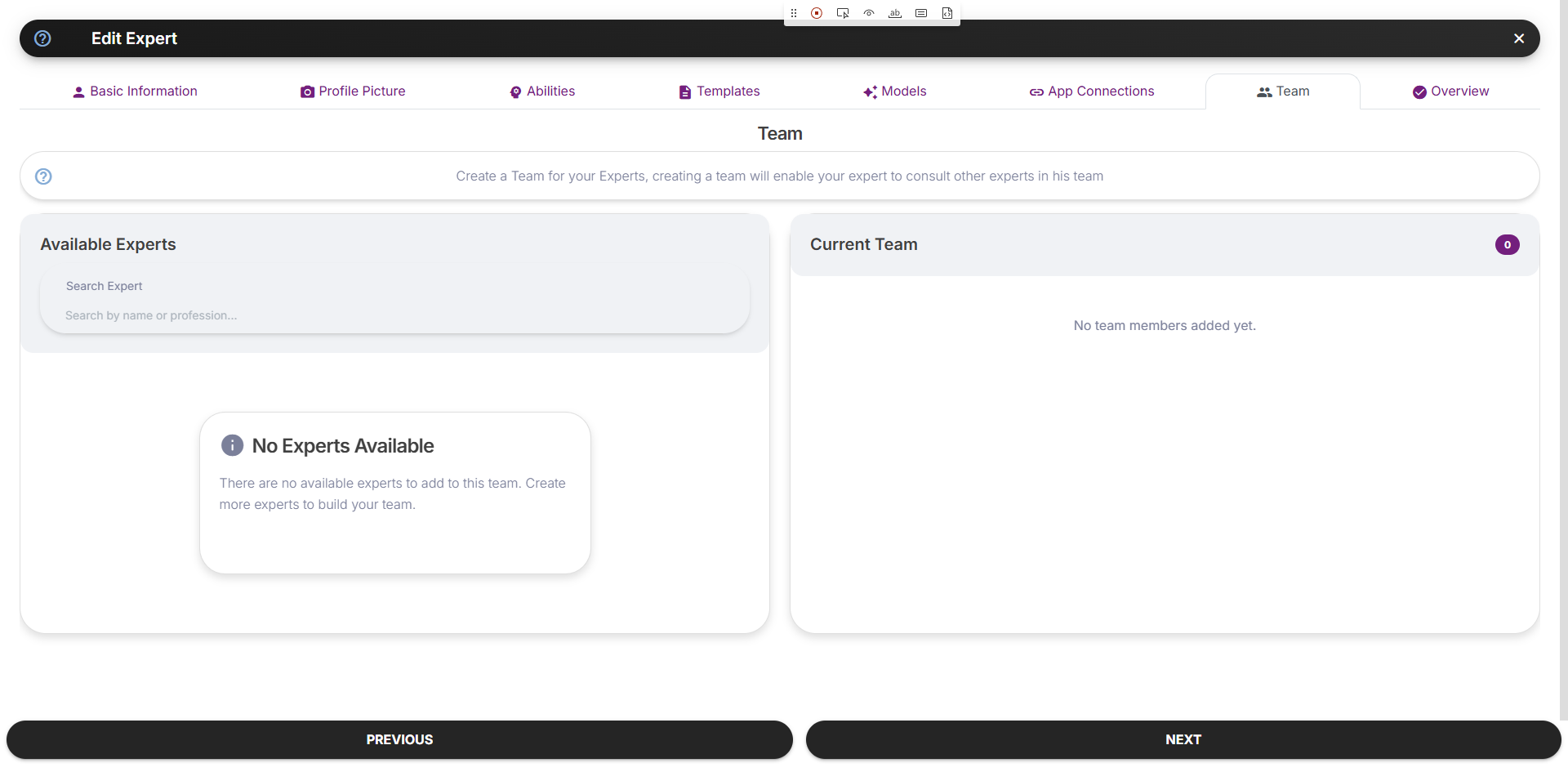 **Requirement:** You need at least **2 experts** to use the Team feature. Create additional experts first if you only have one.
### How Teams Work
* Your expert can consult team members for specialized tasks
* Team members appear in "Available Experts" list
* Drag or add experts to "Current Team"
* Useful for complex workflows requiring multiple specialties
### Example Team Structure
```
Marketing Expert (main)
├── Content Writer Expert
├── Data Analyst Expert
└── Social Media Expert
```
***
## Overview
The Overview tab provides a summary of all expert settings:
**Requirement:** You need at least **2 experts** to use the Team feature. Create additional experts first if you only have one.
### How Teams Work
* Your expert can consult team members for specialized tasks
* Team members appear in "Available Experts" list
* Drag or add experts to "Current Team"
* Useful for complex workflows requiring multiple specialties
### Example Team Structure
```
Marketing Expert (main)
├── Content Writer Expert
├── Data Analyst Expert
└── Social Media Expert
```
***
## Overview
The Overview tab provides a summary of all expert settings:
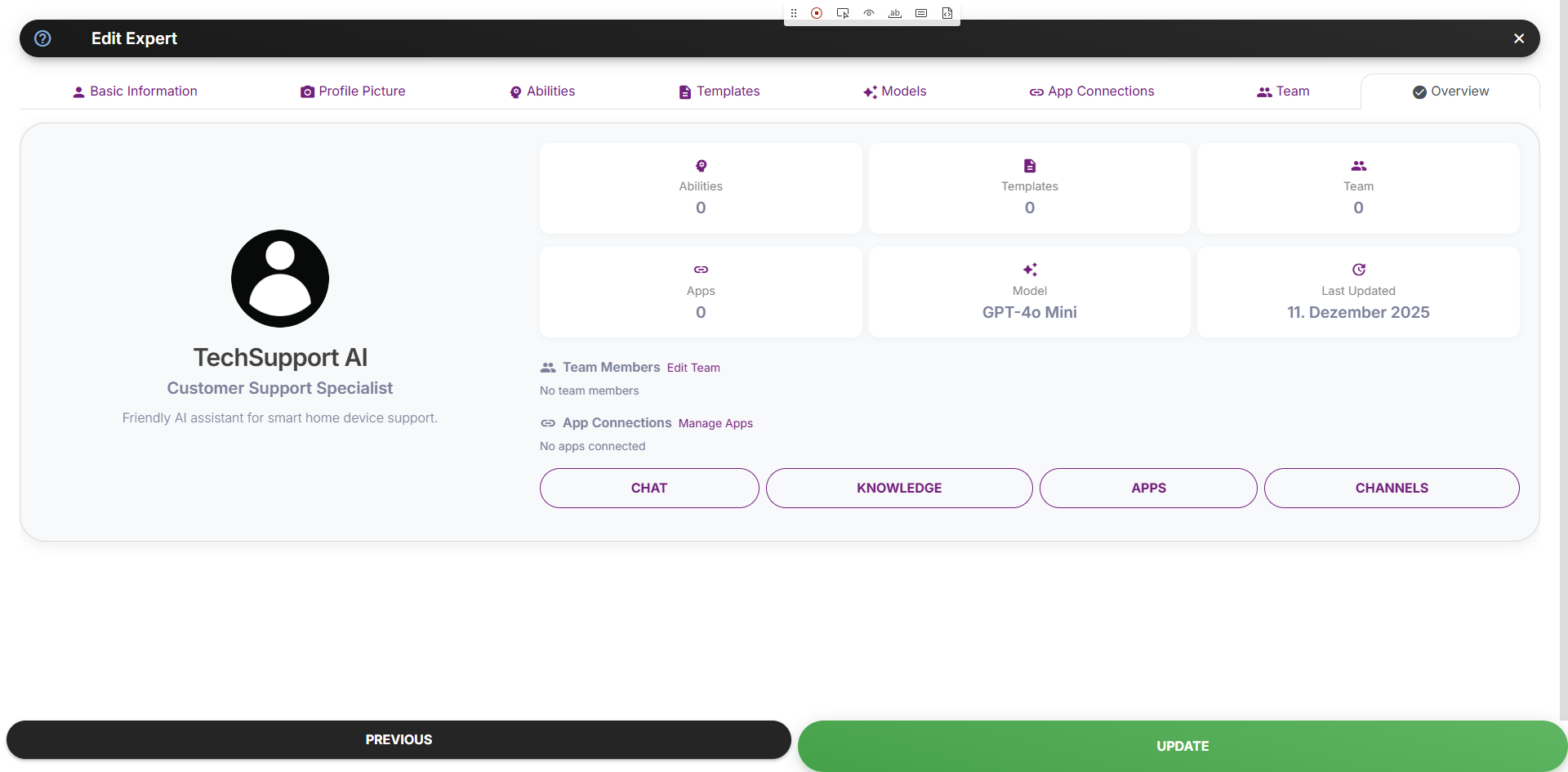 ### Quick Stats
* Abilities count
* Templates count
* Team members count
* Connected apps count
* Current model
* Last updated date
### Quick Actions
* **Chat** - Start chatting with this expert
* **Knowledge** - Manage knowledge bases
* **Apps** - Go to app connections
* **Channels** - Set up distribution
***
## Saving Changes
After making changes:
1. Navigate to any tab or **Overview**
2. Click **Update** to save all changes
3. Changes take effect immediately
**Tip:** Use the Overview tab to verify all settings before saving.
## Next Steps
Test your expert's configuration
Complete hands-on guide with exercises
### Quick Stats
* Abilities count
* Templates count
* Team members count
* Connected apps count
* Current model
* Last updated date
### Quick Actions
* **Chat** - Start chatting with this expert
* **Knowledge** - Manage knowledge bases
* **Apps** - Go to app connections
* **Channels** - Set up distribution
***
## Saving Changes
After making changes:
1. Navigate to any tab or **Overview**
2. Click **Update** to save all changes
3. Changes take effect immediately
**Tip:** Use the Overview tab to verify all settings before saving.
## Next Steps
Test your expert's configuration
Complete hands-on guide with exercises