> ## Documentation Index
> Fetch the complete documentation index at: https://docs.b-bot.space/llms.txt
> Use this file to discover all available pages before exploring further.
# Resources
> Find files and projects created in Agent threads
# Resources
Resources is a thread-centered browser for outputs created in Agent conversations. It groups files under the thread that produced them, so you can return to the conversation or open its output.
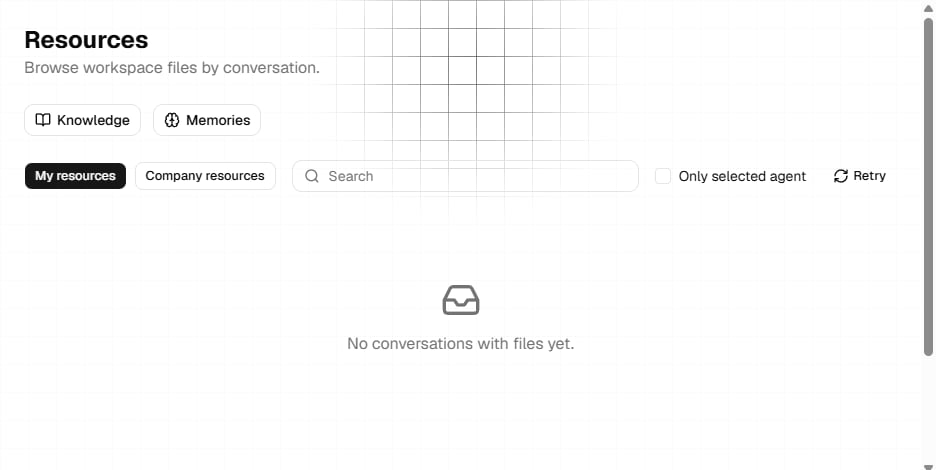 Only threads with generated files appear on this page. Outputs are grouped as **Website**, **Presentation**, or **Files**.
## Browse your resources
Use the scope buttons to switch between:
* **My resources**: Threads and outputs associated with your account.
* **Company resources**: Threads and outputs associated with the active company. This scope is unavailable when no company is active.
Use search to match a thread title or thread ID. Enable **Only selected Agent** to show only threads associated with the Agent that is currently selected.
You can also refresh the list to request the latest available resources.
## Understand a resource card
Each card represents one conversation thread. It shows:
* The output type.
* The thread title.
* A shortened thread ID and update time when available.
* The files returned for that thread.
* **Go to thread**, which opens the original conversation.
Select a file to open it. Markdown is rendered as formatted content, while other supported workspace text is shown in a text viewer. A file with a direct download URL opens in a new browser tab when an in-app path is not available.
Markdown files can be exported as PDF. If the active company has a logo, the export menu can create a branded or plain PDF.
## Preview websites and presentations
Website and presentation cards provide a project preview. Select the preview area to open it.
* A **Website** preview can display project settings for **Deploy** and **Versions**.
* A **Presentation** provides its preview without website project settings.
* A general **Files** resource displays its files but does not open a project preview.
These controls appear only when the resource type supports them.
## Open Knowledge
Select the **Knowledge** shortcut at the top of Resources to manage retrieval domains for the selected Agent. Knowledge documents are separate from generated thread files.
See [Knowledge](/essentials/knowledge) for domain creation, document processing, graph exploration, and sharing.
## Open Memories
Select **Memories** at the top of Resources to inspect the memories associated with the current resource context or selected Agent.
Memories are organized into three layers:
* **Core memories**: Core information associated with the Agent context.
* **Long-term memories**: Persistent entries that can be added and maintained.
* **Mid-term memories**: Conversation summaries associated with threads.
Knowledge and Memories provide context in different ways. Knowledge retrieves from managed documents, while Memories preserve layered context associated with an Agent and its conversations.
## Next steps
Create domains and add source documents for retrieval.
Fine-tune a model with example conversations.
Only threads with generated files appear on this page. Outputs are grouped as **Website**, **Presentation**, or **Files**.
## Browse your resources
Use the scope buttons to switch between:
* **My resources**: Threads and outputs associated with your account.
* **Company resources**: Threads and outputs associated with the active company. This scope is unavailable when no company is active.
Use search to match a thread title or thread ID. Enable **Only selected Agent** to show only threads associated with the Agent that is currently selected.
You can also refresh the list to request the latest available resources.
## Understand a resource card
Each card represents one conversation thread. It shows:
* The output type.
* The thread title.
* A shortened thread ID and update time when available.
* The files returned for that thread.
* **Go to thread**, which opens the original conversation.
Select a file to open it. Markdown is rendered as formatted content, while other supported workspace text is shown in a text viewer. A file with a direct download URL opens in a new browser tab when an in-app path is not available.
Markdown files can be exported as PDF. If the active company has a logo, the export menu can create a branded or plain PDF.
## Preview websites and presentations
Website and presentation cards provide a project preview. Select the preview area to open it.
* A **Website** preview can display project settings for **Deploy** and **Versions**.
* A **Presentation** provides its preview without website project settings.
* A general **Files** resource displays its files but does not open a project preview.
These controls appear only when the resource type supports them.
## Open Knowledge
Select the **Knowledge** shortcut at the top of Resources to manage retrieval domains for the selected Agent. Knowledge documents are separate from generated thread files.
See [Knowledge](/essentials/knowledge) for domain creation, document processing, graph exploration, and sharing.
## Open Memories
Select **Memories** at the top of Resources to inspect the memories associated with the current resource context or selected Agent.
Memories are organized into three layers:
* **Core memories**: Core information associated with the Agent context.
* **Long-term memories**: Persistent entries that can be added and maintained.
* **Mid-term memories**: Conversation summaries associated with threads.
Knowledge and Memories provide context in different ways. Knowledge retrieves from managed documents, while Memories preserve layered context associated with an Agent and its conversations.
## Next steps
Create domains and add source documents for retrieval.
Fine-tune a model with example conversations.