

Workflows
Workflows connect Agents, app actions, decisions, and human review in a visual automation. Open Workflows from the sidebar to view saved workflows or start a new one.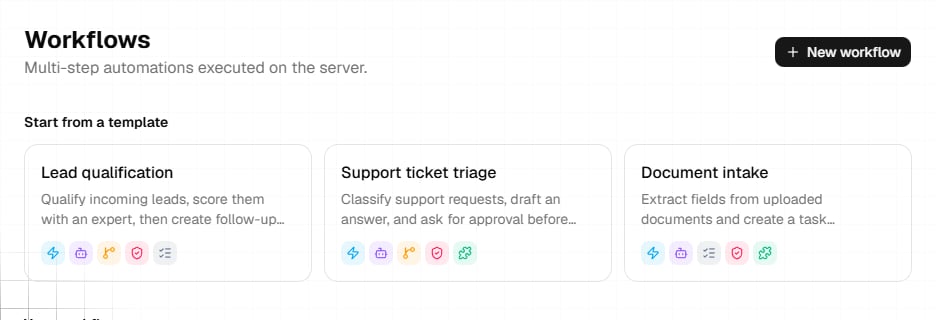
Start from the list or a template
The Workflows page shows:- Starter templates for lead qualification, support ticket triage, and document intake.
- Saved workflows with their draft or active status, step count, and trigger type.
- New workflow for a blank workflow.
Build on the canvas
Add nodes from the palette and place them on the canvas. Connect one node’s output handle to another node’s input handle to define execution order and branches. Select a node to open its configuration panel. B-Bot Hub supports these node types:- Trigger
- Agent step
- Action
- If condition
- Switch
- For each
- While loop
- Wait
- Merge
- Human approval
- Task update
- Stop
Map data between nodes
Agent and Action nodes define input and output fields. Use the mapping editor to map each input to an output from an upstream node. Clear field names and structured Agent outputs make conditions, switches, and later mappings more reliable. For branching nodes, connect the labeled output handles to the correct downstream paths. For loops, connect the loop path to the repeated steps and the completed path to the steps that follow the loop.Save, test, and inspect runs
1
Save
Save the workflow as a draft. A saved workflow receives the ID required by runs and configured triggers.
2
Test run
Select Test run. The builder saves current changes first and queues a test execution.
3
Inspect Runs
Open Runs to review execution status and node details. Runs can wait for approval when they reach a Human approval node or an action that requires approval.
4
Publish
Select Publish to make the workflow active. Use Unpublish to return it to draft status.
Configure triggers after saving
The trigger node supports these trigger types:- Manual run
- Schedule
- Webhook
- Polling
- App trigger
Configured triggers are active only while the workflow is published.
Related guides
Apps
Connect Composio apps and MCP servers for Action and App trigger steps.
Tasks
Learn how task execution and task workspaces operate.