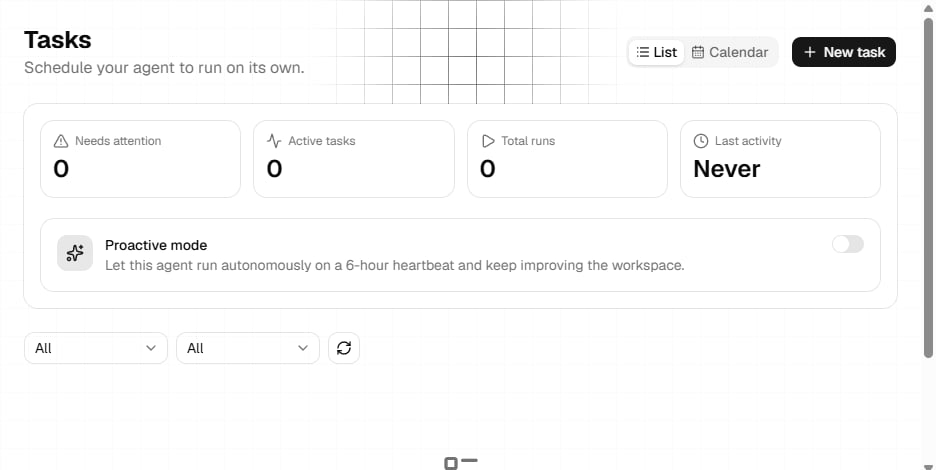
Tasks & Scheduling

The Tasks system allows you to schedule your experts to run automatically at specific times or intervals. Each task can have its own workspace with todos and files, making it perfect for recurring reports, data processing, monitoring, and automated workflows.

Overview

Scheduled Execution

Run tasks on a schedule or on-demand

Task Workspace

Each task has its own todos and files

Automation

Set it and forget it automation

Accessing Tasks

Navigate to Tasks in the main sidebar to access the scheduler interface. Tasks Overview

Task Views

The scheduler offers three different views:
  • List View
  • Calendar View
  • Form View
Best for: Managing individual tasksSee all tasks in a list with:
  • Task name and description
  • Schedule information
  • Status (active/paused)
  • Last run time
  • Next run time
  • Quick actions
Actions available:
  • ▶️ Run Now
  • ⏸️ Pause/Resume
  • 📂 Open Workspace
  • ✏️ Edit Task
  • 🗑️ Delete Task

Creating a Task

1

Open Task Form

Click Create New Task or switch to Form View
2

Basic Information

  • Task Name: Descriptive name for the task
  • Description: What this task does
  • Expert/Assistant: Select which AI to use
  • Priority: High, Medium, or Low
3

Configure Schedule

Choose scheduling method:
  • Cron Expression: For complex schedules
  • Simple Interval: Every X hours/days
  • One-time: Run once at specific time
  • Manual Only: No automatic schedule
4

Set Input

Define what the expert should do:
  • Prompt/Instructions: Task instructions
  • Input Data: Pre-defined data or variables
  • Context: Additional information
5

Configure Output

How to handle results:
  • Save to Workspace: Store files automatically
  • Send Notification: Email or webhook
  • Trigger Webhook: POST results to URL
  • Update Database: Store in system
6

Save & Schedule

Review and save the task. It will run according to schedule.

Schedule Configuration

Cron Expressions

Use cron syntax for precise scheduling:
# Format: minute hour day month weekday
# *     *    *   *     *

# Examples:
0 9 * * *           # Every day at 9 AM
0 */6 * * *         # Every 6 hours
0 0 * * 1           # Every Monday at midnight
0 12 * * 1-5        # Weekdays at noon
0 0 1 * *           # First day of each month
*/30 * * * *        # Every 30 minutes
0 8,12,18 * * *     # At 8 AM, noon, and 6 PM
Cron Expression Builder: The form includes a visual cron builder to help create expressions without memorizing syntax.

Simple Intervals

For basic repeating tasks:
  • Hourly
  • Daily
  • Weekly
  • Monthly
Every 1 hour
Every 2 hours
Every 6 hours
Every 12 hours

Task Workspace

New Feature! Each task has its own workspace separate from chat conversations.

Opening Workspace

Click Open Workspace on any task to access its dedicated workspace with: Tasks Tab:
  • Todo list specific to this scheduled task
  • Track multi-step processes
  • Monitor task progress
  • Add manual todos for planning
Files Tab:
  • Files generated by the task
  • Input data files
  • Output reports
  • Logs and results

Workspace Features

Persistent State

Workspace persists between task runs

Version Control

Track changes across executions

File Management

Organize outputs by run date

Todo Tracking

Multi-step task management

Workspace Example

Task: "Daily Sales Report"

📋 Todos:
├── ✅ Fetch sales data from database
├── ✅ Calculate daily metrics
├── ✅ Generate charts and graphs
├── ⏳ Write executive summary
└── ⏳ Email report to stakeholders

📁 Files:
├── sales_data_2025-11-25.csv
├── daily_metrics.json
├── sales_chart.png
├── growth_trend.png
└── report_2025-11-25.md

Use Cases

1. Daily Reports

Schedule: Every day at 8 AMTask:
  • Fetch sales data from previous day
  • Calculate key metrics (revenue, orders, conversion)
  • Generate comparison charts
  • Write summary report
  • Email to management team
Output:
  • Daily report PDF
  • CSV data file
  • Chart images
  • Email notification
Schedule: Every 6 hoursTask:
  • Check server status
  • Monitor error rates
  • Review performance metrics
  • Alert on anomalies
Output:
  • Health dashboard JSON
  • Alert notifications (if issues)
  • Historical logs

2. Data Processing

Schedule: Every hourTask:
  • Extract data from source systems
  • Transform and clean data
  • Load into data warehouse
  • Validate data quality
Output:
  • Processed data files
  • Quality reports
  • Error logs
  • Success/failure notifications
Schedule: Daily at midnightTask:
  • Process accumulated data
  • Run machine learning models
  • Generate predictions
  • Update dashboards
Output:
  • Analysis results
  • Prediction files
  • Model performance metrics

3. Content Generation

Schedule: Weekdays at 9 AMTask:
  • Research trending topics
  • Generate post ideas
  • Create engaging content
  • Schedule for publishing
Output:
  • Social media posts
  • Image suggestions
  • Hashtag recommendations
  • Publishing schedule
Schedule: Weekly on MondaysTask:
  • Research topic trends
  • Outline article structure
  • Write draft content
  • Suggest images and SEO
Output:
  • Article drafts
  • SEO recommendations
  • Image suggestions
  • Publishing checklist

4. Monitoring & Alerts

Schedule: Every 15 minutesTask:
  • Check website availability
  • Test key user flows
  • Monitor response times
  • Alert on failures
Output:
  • Uptime status
  • Performance metrics
  • Incident alerts
  • Historical logs
Schedule: Daily at 2 AMTask:
  • Scan for vulnerabilities
  • Check security updates
  • Review access logs
  • Generate security report
Output:
  • Vulnerability report
  • Update recommendations
  • Security alerts
  • Compliance status

Task Execution

Execution Flow

Execution Logs

Each task execution creates a log entry:
  • Start Time: When execution began
  • End Time: When it completed
  • Duration: How long it took
  • Status: Success, Failed, or Cancelled
  • Output Summary: What was produced
  • Error Details: If any errors occurred
  • Resource Usage: Tokens, API calls, etc.

Manual Execution

Run any task manually:
1

Find Task

Locate the task in List View
2

Click Run Now

Click the ▶️ Run Now button
3

Confirm

Confirm manual execution
4

Monitor

Watch real-time execution in the log

Output Handling

Save to Workspace

Automatically save outputs to the task’s workspace:
{
  save_to_workspace: true,
  file_prefix: "report_",
  include_timestamp: true
  // Saves as: report_2025-11-25_09-00-00.md
}

Email Notifications

Send results via email:
{
  notify_email: true,
  recipients: ["[email protected]"],
  subject: "Daily Report - {{date}}",
  attach_outputs: true,
  summary_only: false
}

Webhook Integration

POST results to external systems:
{
  webhook_url: "https://api.yourapp.com/tasks/results",
  method: "POST",
  headers: {
    "Authorization": "Bearer token123"
  },
  include_workspace: true
}

Database Storage

Store results in database:
{
  save_to_database: true,
  table: "task_results",
  include_metadata: true
}

Task Management

Pausing Tasks

Temporarily stop a task without deleting:
  • Click Pause in task actions
  • Task won’t run on schedule
  • Can resume anytime
  • Workspace preserved
When to pause:
  • Maintenance windows
  • Testing other configurations
  • Temporary suspension
  • Seasonal adjustments

Editing Tasks

Modify existing tasks:
Changes take effect immediately. Next run will use new configuration.
Editable fields:
  • Schedule
  • Input instructions
  • Output handling
  • Notification settings
Cannot change:
  • Task ID
  • Historical execution logs
  • Existing workspace files

Deleting Tasks

Permanently remove a task:
1

Select Task

Find the task to delete
2

Click Delete

Click the 🗑️ delete icon
3

Confirm

Confirm deletion (this is permanent!)
Warning: Deleting a task removes:
  • Task configuration
  • Execution history
  • Workspace todos
  • Workspace files
This action cannot be undone!

Best Practices

Naming Convention

Use descriptive names:✅ Good:
  • “Daily Sales Report - 9 AM”
  • “Hourly Server Health Check”
  • “Weekly Content Generation”
❌ Bad:
  • “Task 1”
  • “Report”
  • “Check”

Schedule Wisely

Consider:
  • Off-peak hours for heavy tasks
  • Business hours for reports
  • Data availability timing
  • API rate limits
Example:
  • Heavy processing: 2-4 AM
  • Reports: 8-9 AM before work
  • Monitoring: Every 15 min

Error Handling

Always configure:
  • Error notifications
  • Fallback behavior
  • Retry logic
  • Escalation procedures
Test failure scenarios:
  • Missing data
  • API failures
  • Network issues
  • Invalid inputs

Resource Management

Monitor:
  • Execution duration
  • Token usage
  • API costs
  • Storage growth
Optimize:
  • Adjust frequency if needed
  • Clean old workspace files
  • Use efficient prompts
  • Archive old results

Troubleshooting

Check:
  1. Is task active (not paused)?
  2. Is schedule configured correctly?
  3. Are credentials valid?
  4. Is expert/assistant available?
Debug:
  • View execution logs
  • Try manual run
  • Check cron expression
  • Verify permissions
Common causes:
  • Invalid input data
  • API key expired
  • Rate limits exceeded
  • Network timeouts
  • Expert configuration issues
Solutions:
  • Review error logs
  • Test inputs manually
  • Check API keys
  • Adjust rate limits
  • Update expert configuration
Verify:
  • Output handling configured?
  • Workspace save enabled?
  • Correct file paths?
  • Permissions set?
Check:
  • Execution logs for errors
  • Workspace files tab
  • Email delivery logs
  • Webhook response codes
If workspace not updating:
  1. Refresh the workspace view
  2. Check task execution completed
  3. Verify save_to_workspace enabled
  4. Review execution logs
If files missing:
  • Check execution success
  • Verify file generation in logs
  • Look for error messages
  • Contact support if persists

Next Steps