

Workshop 1: Getting Started with B-Bot
Duration: 30 minutes | Level: Beginner | Prerequisites: None
What You’ll Learn
In this workshop, you’ll gain a complete understanding of the B-Bot ecosystem and learn to navigate the platform confidently.Understanding the B-Bot Ecosystem
Learn about the different components: Hub, Chat, Synapse, and Main API
The B-Bot Ecosystem
B-Bot is a comprehensive AI platform consisting of several interconnected components:🚀 B-Bot Platform Architecture
🖥️
Frontend
↔️
🧠
AI Engine
↔️
⚙️
Backend
↓
📱 B-Bot Chat
↓
🤖 LangGraph Agents
↓
🔌 Provider APIs
B-Bot Hub
The main web application where you create, manage, and train your AI experts. This is your command center.
B-Bot Synapse
The AI engine powered by LangGraph that executes conversations, manages memory, and orchestrates tools.
B-Bot Chat
A sleek mobile-friendly interface for end-users to interact with published experts.
Main API
RESTful API for programmatic access to all B-Bot features.
Account Setup
Step 1: Create Your Account
Navigate to hub.b-bot.space and click the Login button.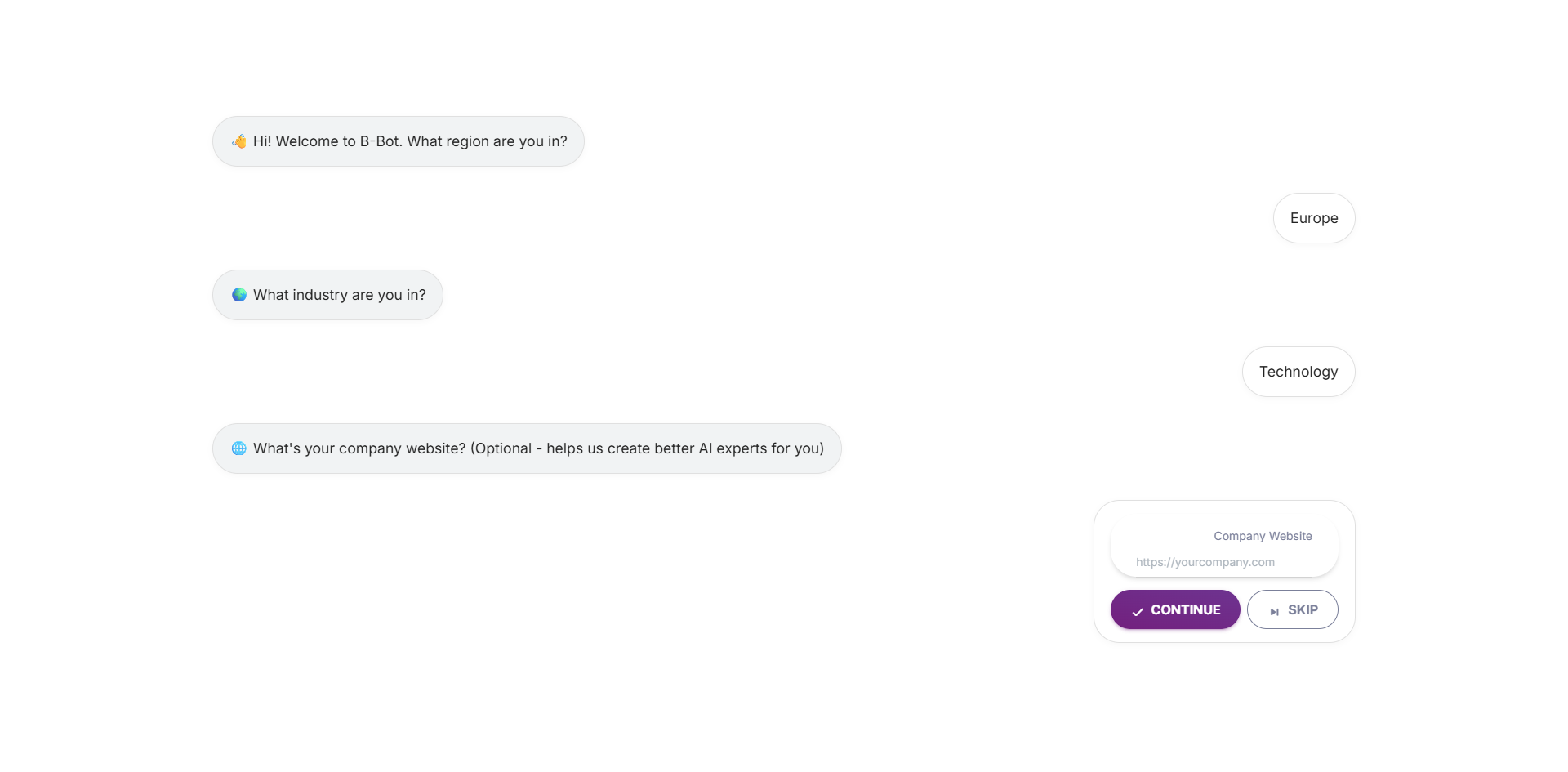
- Email/Password - Traditional signup
- Google - OAuth with your Google account
- Shopify - For Shopify merchants
- Stripe Connect - For payment integration
Step 2: Choose Your Subscription
After logging in, you’ll choose a subscription plan with a 14-day free trial: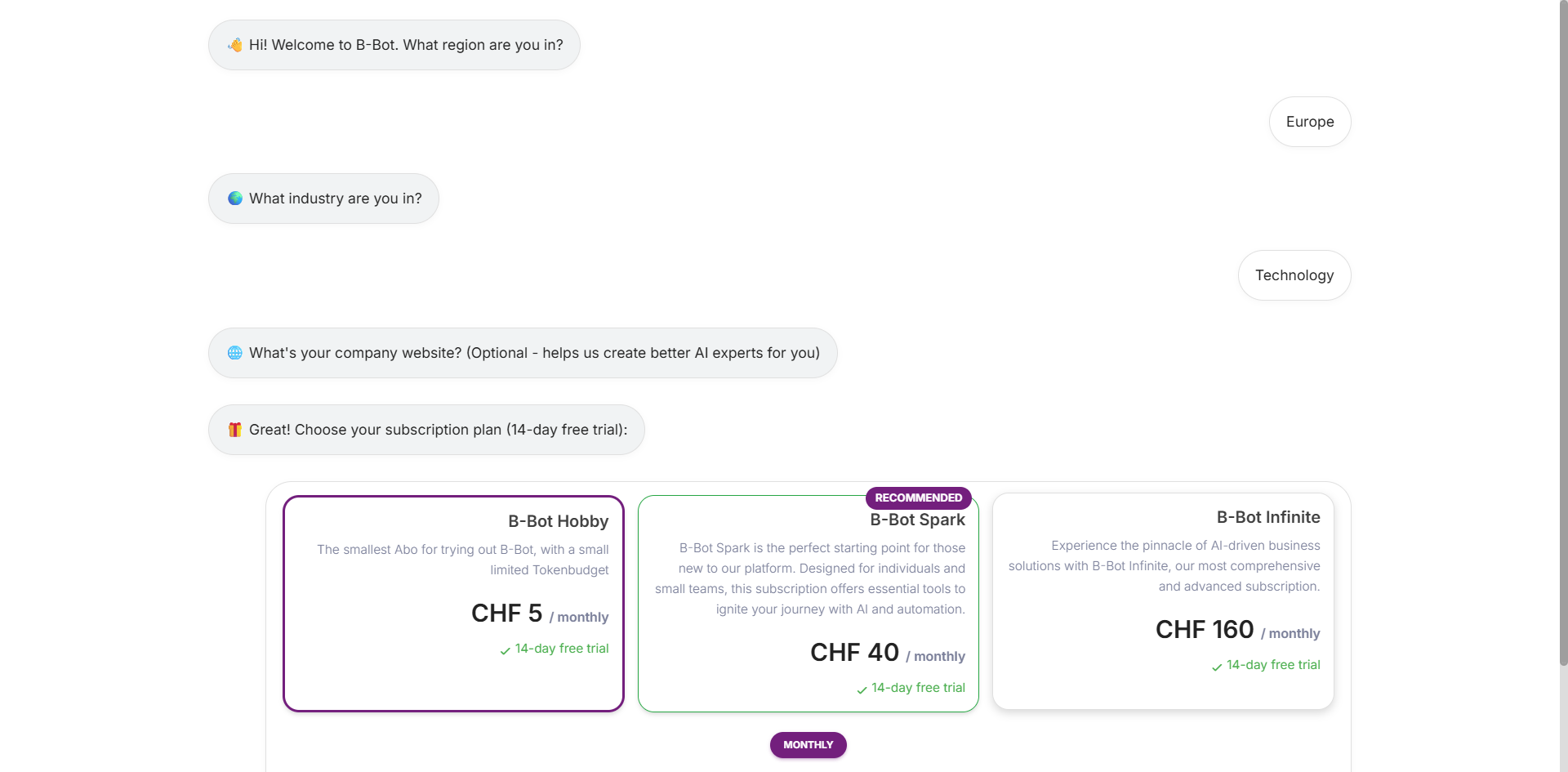
Step 3: Configure AI Provider
Select your preferred AI provider and add your API key: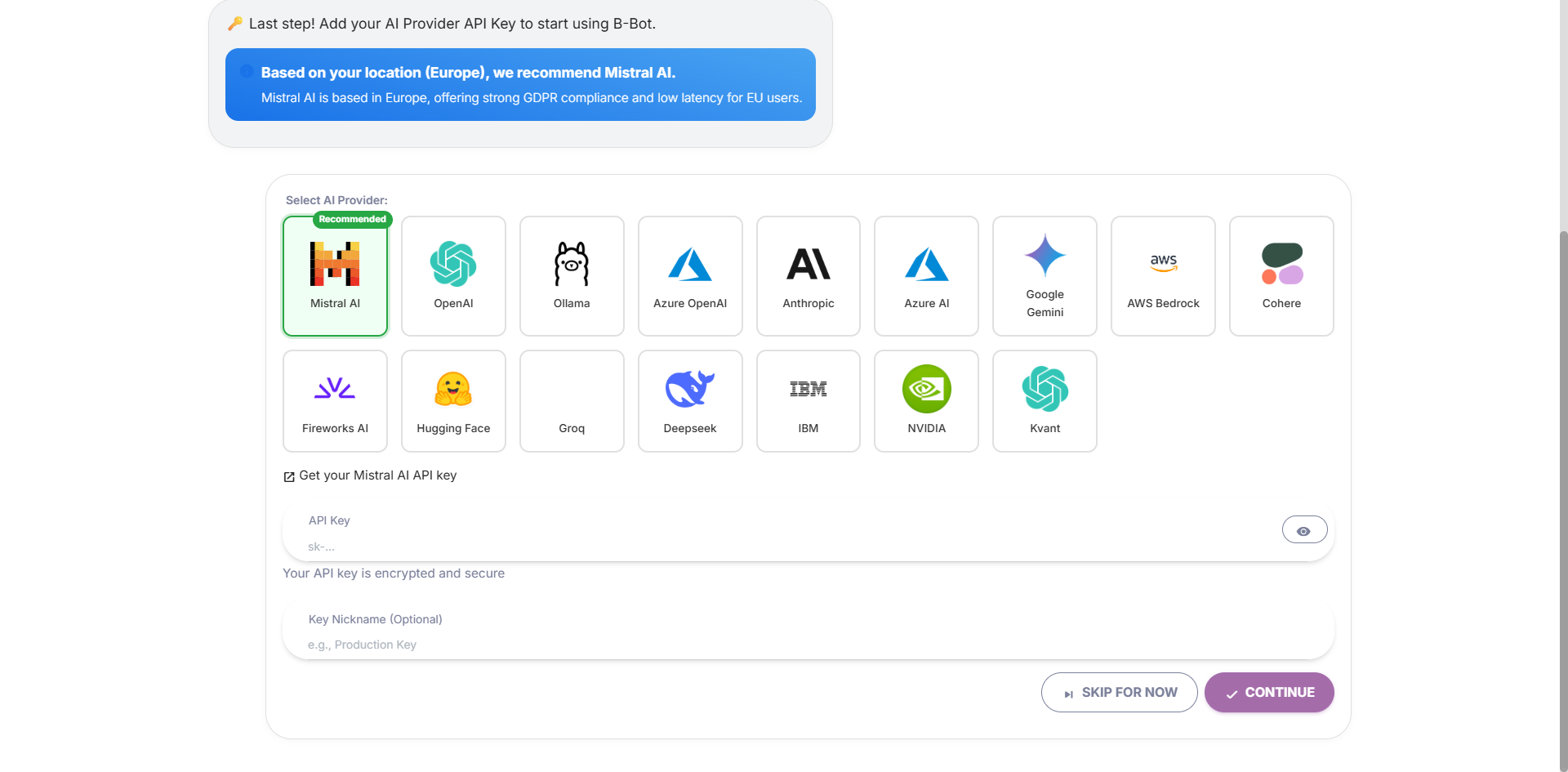
Step 4: Explore the Dashboard
Once logged in, you’ll see the main News page with tutorials and updates: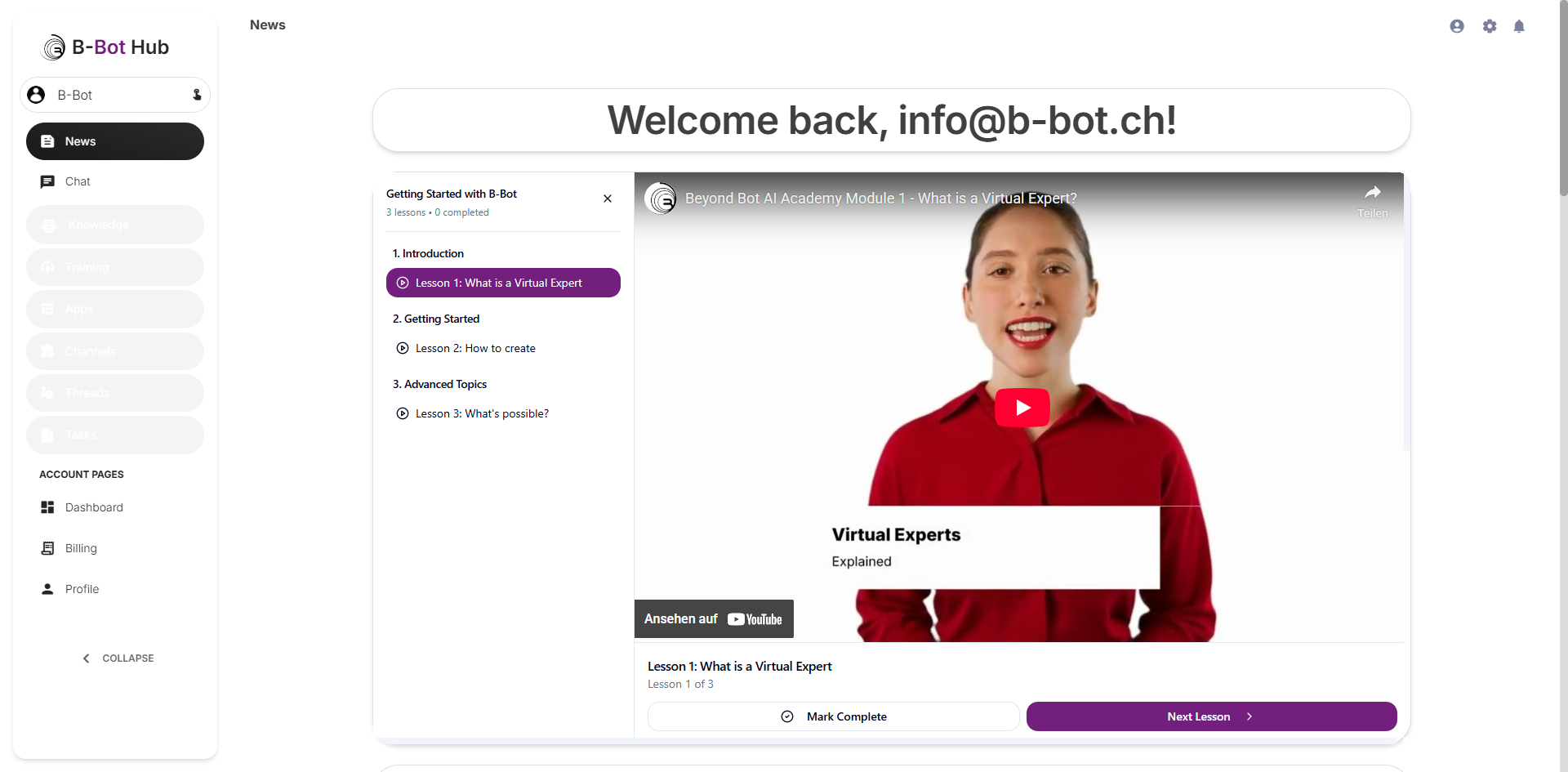
Navigation Guide
The Expert Selector Card
This is the most important navigation element! Right below the logo in the sidebar, you’ll see an Expert Card showing:- The currently selected expert’s profile picture
- The expert’s name
- A “touch_app” icon indicating it’s clickable
- Chat conversations
- Training data
- App connections
- Distribution channels
Main Navigation Sections
The Hub sidebar is organized into these sections:News
News
Your home/landing page showing:
- Welcome message
- Platform updates
- Blog articles
- Documentation links
Chat
Chat
Interact with your selected expert:
- Start conversations
- View chat history
- Use template prompts
- Access abilities and memories
Knowledge
Knowledge
Manage your expert’s knowledge base:
- Upload documents (RAG)
- View indexed content
- Configure retrieval settings
Expert
Expert
Manage your AI experts:
- Same as clicking the Expert Card
- Create, edit, delete experts
- Browse templates
Training
Training
Improve your experts:
- Upload documents
- Create QA pairs
- Fine-tune models
- Review training data
Apps
Apps
Connect tools and services:
- Browse app marketplace
- Configure integrations
- Manage API connections
- MCP tools
Channels
Channels
Distribution channels:
- Create embed widgets
- API access
- B-Bot Chat publishing
Threads
Threads
Conversation management:
- View all threads
- Search conversations
- Export chat history
Tasks
Tasks
DeepAgent tasks:
- View agent-created tasks
- Track progress
- Manage todos
Account Pages
Below the main navigation, you’ll find:- Dashboard: Usage statistics and overview
- Billing: Subscription and payment management
- Profile: Personal settings and API keys
Key Concepts
Before diving deeper, understand these core concepts:Experts (The Most Important Concept!)
An Expert is your AI assistant with:- Custom personality and behavior
- Specific knowledge and abilities
- Connected tools and apps
- Training data and fine-tuning
The Expert Workflow
Threads
A Thread is a conversation:- Contains message history
- Maintains context
- Has associated state
- Can be saved and resumed
- Tied to the expert that was selected
Tools
Tools extend your expert’s capabilities:- Web search
- Document retrieval
- API calls
- Code execution
- Custom integrations
Memory
Memory helps experts remember:- User preferences
- Important facts
- Conversation context
- Long-term knowledge
🎯 Exercise: First Navigation
Complete these tasks to familiarize yourself with the Hub:🎬 Watch the Video Tutorial: Follow along with our step-by-step video guide below!
Find the Expert Card
Look below the logo in the sidebar - you’ll see a card with an expert’s picture and name
Checkpoint: You should now understand how to select experts and navigate the Hub!
Understanding Token Economics
B-Bot uses tokens for AI operations:| Operation | Token Cost |
|---|---|
| Text message (GPT-4) | ~100-500 tokens |
| Image generation | ~1000 tokens |
| Voice transcription | ~100 tokens |
| Document processing | Varies by size |
Quiz: Test Your Knowledge
Q1: What is B-Bot Synapse?
Q1: What is B-Bot Synapse?
Answer: B-Bot Synapse is the AI engine that powers conversations, manages memory, and orchestrates tools using LangGraph.
Q2: What is a Thread?
Q2: What is a Thread?
Answer: A Thread is a conversation that contains message history, maintains context, and can be saved and resumed.
Q3: How do you access the Hub?
Q3: How do you access the Hub?
Answer: Navigate to hub.b-bot.space and sign in with your account.
Next Steps
Congratulations! You’ve completed Workshop 1. You now understand:- The B-Bot ecosystem architecture
- How to navigate the Hub
- Key concepts like experts, threads, and tools
- Token economics
Continue to Workshop 2
Create your first AI expert
Review the Docs
Explore detailed documentation