

Workshop 3: Chat & Conversations Mastery
Duration: 45 minutes | Level: Intermediate | Prerequisites: Workshops 1-2
What You’ll Master
Take your expert interactions to the next level by mastering every chat feature the B-Bot platform offers.The Chat Interface
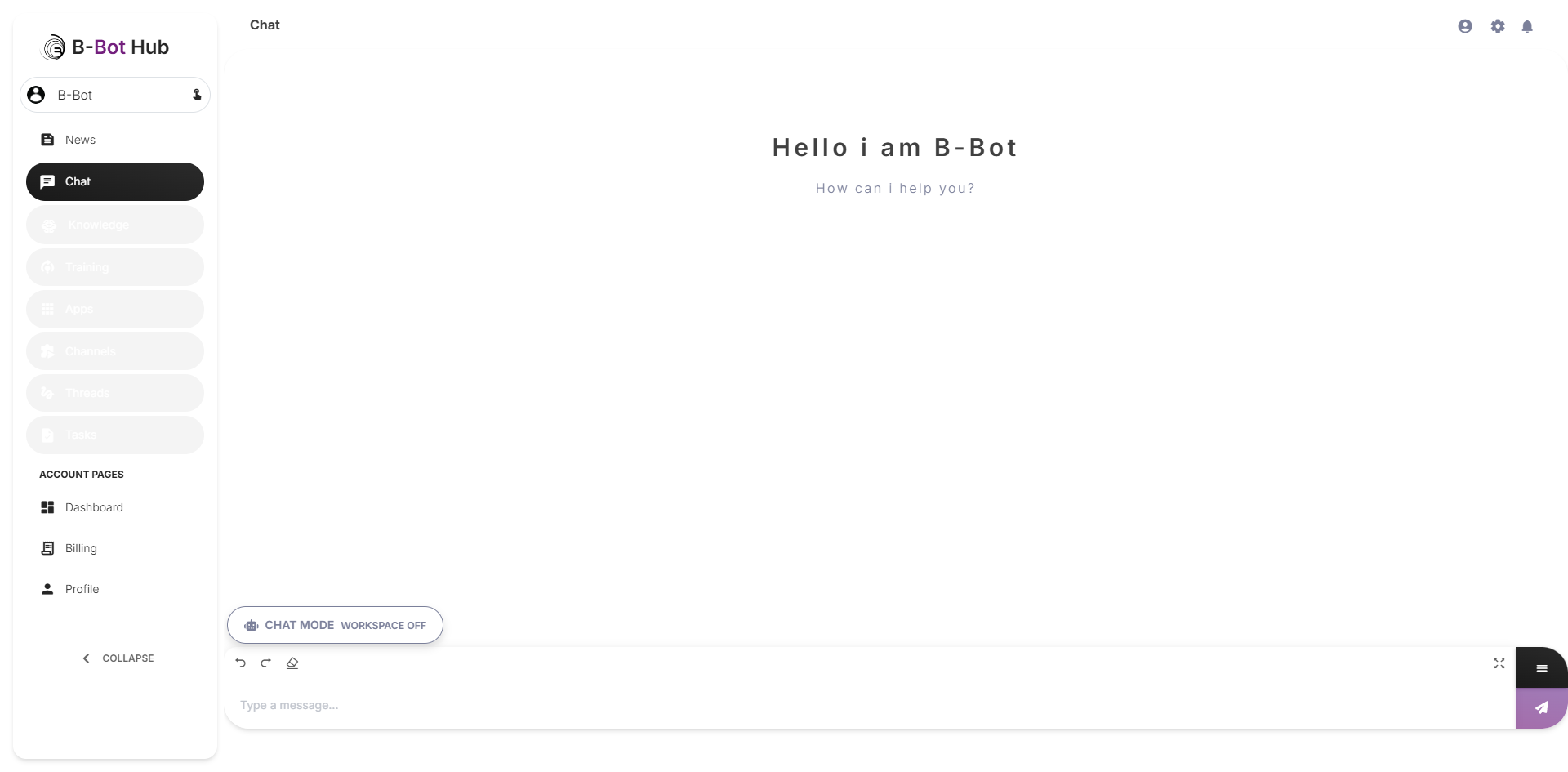
When you select an expert and navigate to Chat, you’ll see a rich interface designed for powerful conversations.Welcome Screen
When starting a new chat, you’ll see:- Expert Greeting: “Hello I am [Expert Name]” with their profile picture
- Helper Text: “How can I help you?”
- Template Buttons: Quick-start prompts specific to that expert (e.g., “Example template 1 for Alice Johnson”)
Chat Mode Toggle
At the top of the chat area, you’ll see:- Chat Mode / Workspace OFF/ON - Toggle between standard chat and DeepAgents workspace mode
Message Input Area
The input area at the bottom includes:- Text Input: “Type a message…” placeholder
- Send Button: Submit your message
- Toolbar: Access to all chat features
Toolbar Buttons
The toolbar provides quick access to all chat features:| Button | Feature | Description |
|---|---|---|
| menu | Menu | Toggle toolbar visibility |
| Choose Abilities | Abilities | View and activate expert behaviors |
| Choose previous conversations | History | Browse and resume past chats |
| model_training | Model | Change the AI model being used |
| Change standard settings | Settings | Configure temperature, tokens, etc. |
| Show Memories | Memories | View and manage expert’s memory |
| Enable/Disable connected Apps | Apps | Toggle integrations and tools |
| Show/Hide Tasks | Tasks | View DeepAgent task panel |
| Start new chat | New Chat | Clear and start fresh conversation |
| Add files to chat | Upload | Add documents, images, or data |
| Toggle Voice Input | Voice | Enable voice recording mode |
Working with Abilities
Viewing Available Abilities
Click the Choose Abilities button in the toolbar to open the abilities panel: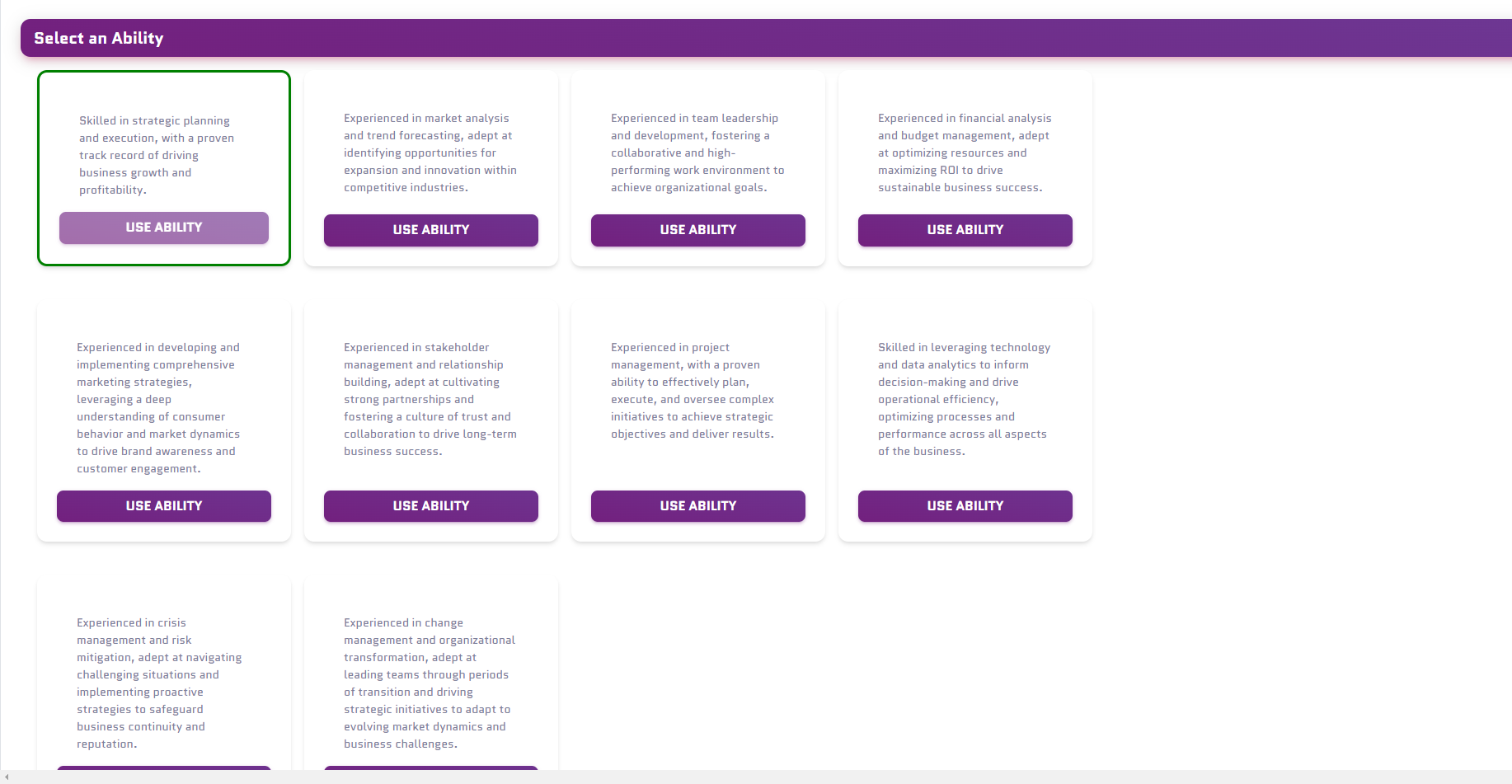
Abilities Panel Structure
| Element | Description |
|---|---|
| Help button | Opens contextual help about abilities |
| ”Select an Ability” heading | Panel title |
| ”Select an ability to enhance your prompt” | Helper text explaining the purpose |
| Abilities list | Scrollable list of all configured abilities |
| Close button | Dismiss the panel |
Each Ability Card Shows
- Ability name - The title of the ability
- “Use Ability” button - Click to activate this behavior
Activating an Ability
🎯 Exercise: Ability Switching
- Start a conversation with your TechSupport AI
- Ask a general question
- Activate “Troubleshooting Mode” ability
- Ask the same question again
- Notice how the response style changes!
Chat History
Browsing Past Conversations
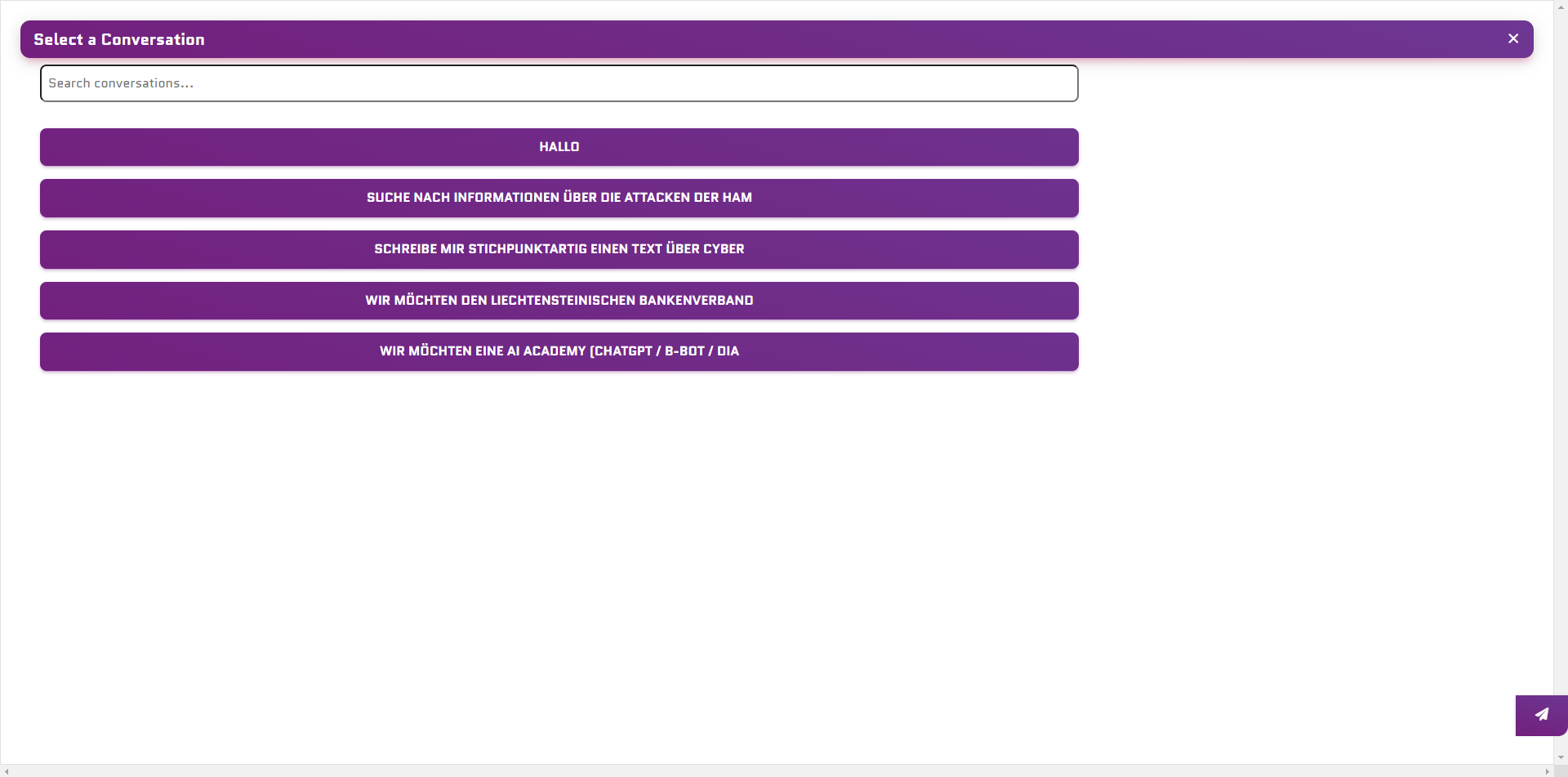
- Thread Name: Auto-generated or custom title
- Last Message: Preview of recent activity
- Date: When the conversation occurred
Managing Conversations
Resume
Click any conversation to continue where you left off
Search
Use the search bar to find specific conversations
Delete
Remove old conversations you no longer need
Model Selection
Switching Models Mid-Conversation
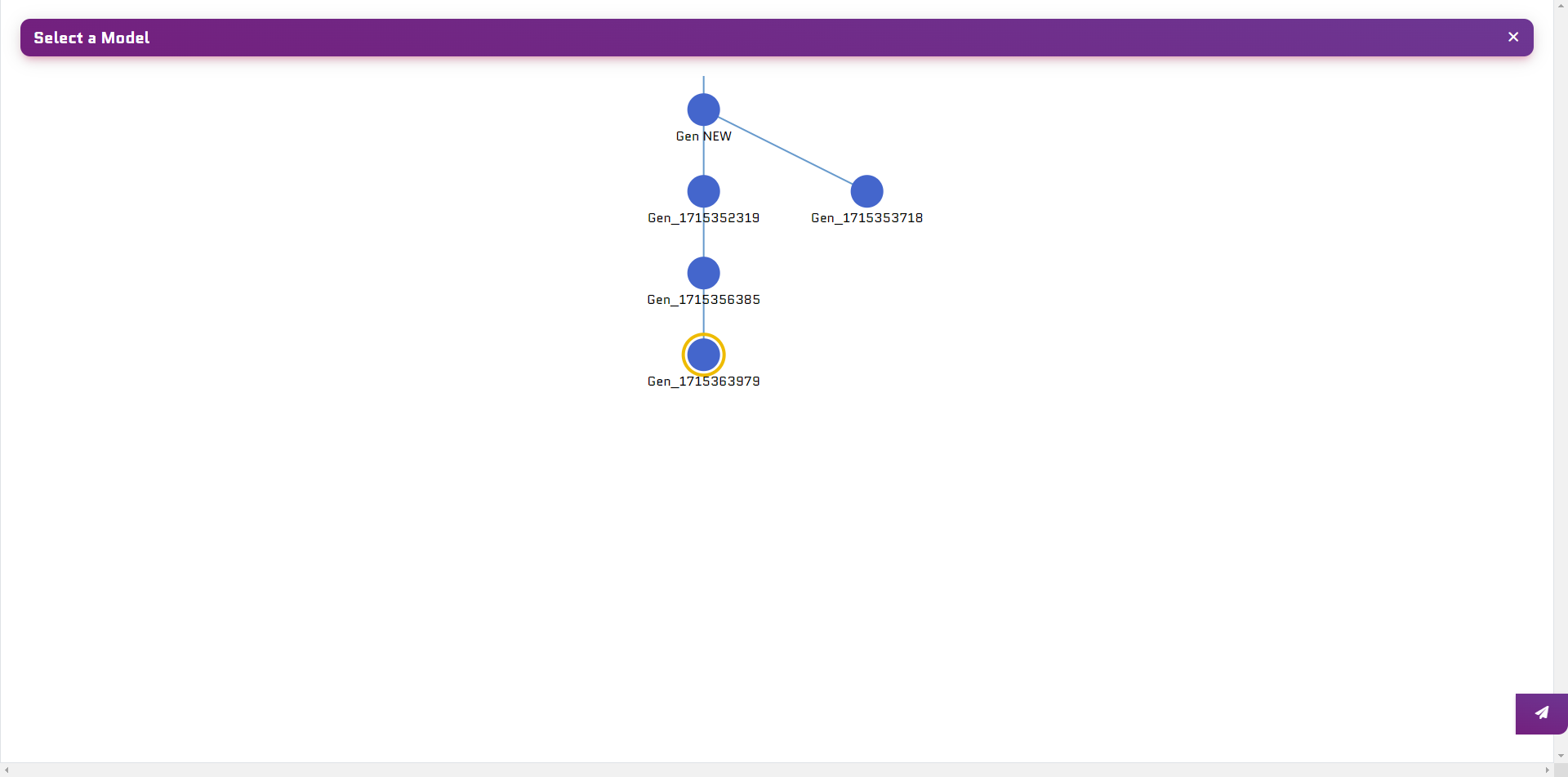
When to Switch Models
| Scenario | Recommended Model |
|---|---|
| Quick questions | GPT-4o-mini |
| Complex analysis | GPT-4o or Claude 3.5 |
| Creative writing | Claude 3.5 Sonnet |
| Code assistance | GPT-4o |
| Cost-sensitive | GPT-4o-mini or Gemini |
Chat Settings
Click the Change standard settings button in the toolbar to open the Settings dialog.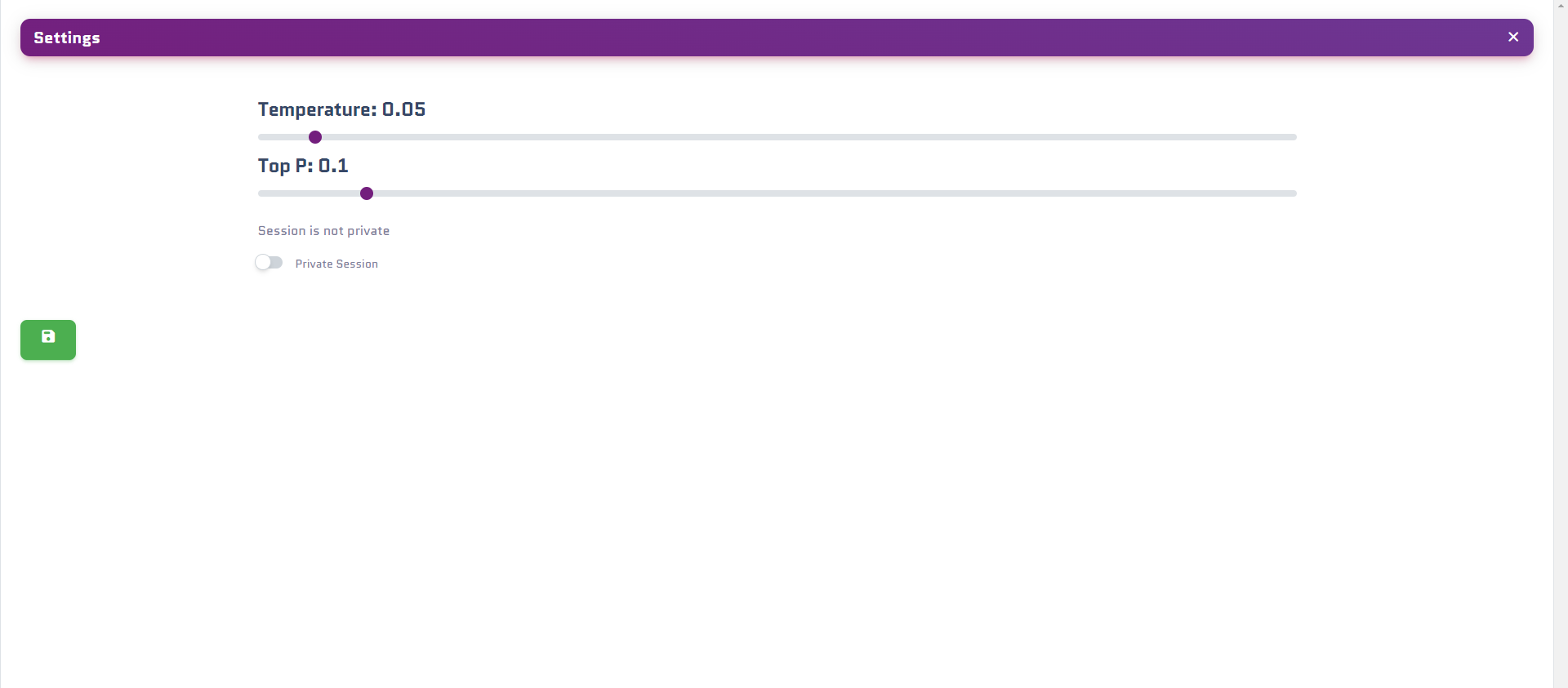
Settings Dialog Structure
The Settings dialog has a clean, organized layout:| Element | Description |
|---|---|
| Help button | Opens contextual help about settings |
| ”Settings” heading | Dialog title |
| ”Change settings to get better results” | Helper text |
Available Settings
Temperature Slider
Temperature Slider
Interactive slider that controls randomness in responses:
- 0.0-0.3: Very consistent, deterministic
- 0.4-0.7: Balanced creativity and consistency
- 0.8-1.0: More creative, varied responses
Top P Slider
Top P Slider
Interactive slider for nucleus sampling:
- 0.9: Standard (recommended)
- Lower values = more focused responses
Additional Instructions
Additional Instructions
A text field where you can add extra context or instructions for the current conversation without modifying the expert’s base configuration.Placeholder: “Your text here…”
Private Session Checkbox
Private Session Checkbox
When enabled:
- Uses your personal app credentials
- Conversation not used for training
- Separate from expert’s learning
Streaming Checkbox
Streaming Checkbox
Controls whether responses stream token-by-token or appear all at once:
- Enabled (default): See responses as they’re generated
- Disabled: Wait for complete response before display
Use Todo Workflow (HITL) Checkbox
Use Todo Workflow (HITL) Checkbox
Human-in-the-Loop mode:
- When enabled, the agent asks for approval before executing actions
- Useful for controlling autonomous behavior in DeepAgents mode
Dialog Buttons
| Button | Action |
|---|---|
| Close | Dismiss dialog without saving changes |
| Save | Apply changes to the current session |
Voice Features 🎤
Voice Input
B-Bot supports voice input for hands-free interaction:Voice Input Tips
✅ Best Practices
- Speak clearly at normal pace
- Use a quality microphone
- Minimize background noise
- Pause briefly between sentences
❌ Avoid
- Speaking too fast
- Background music/TV
- Very long recordings
- Mumbling or unclear speech
Audio Output 🔊
If text-to-speech is enabled on your expert:| Feature | Description |
|---|---|
| Auto-play | Responses play automatically |
| Manual Play | Click play button to hear response |
| Speed Control | Adjust playback speed |
| Voice Selection | Choose from various TTS voices |
Supported TTS Providers
OpenAI TTS
Voices: Alloy, Echo, Fable, Onyx, Nova, Shimmer
ElevenLabs
Premium natural voices with emotion
Google TTS
WaveNet voices, many languages
Azure Speech
Neural voices, enterprise-grade
File Handling 📎
Uploading Files
Click the upload button or drag files into the chat:Documents
PDF, Word, Text files
Images
PNG, JPG, GIF, WebP
Data
CSV, JSON, Excel files
🎯 Exercise: File Analysis
- Find a PDF document (user manual, report, etc.)
- Upload it to your chat
- Ask: “Summarize the main points of this document”
- Ask follow-up questions about specific sections
Multimodal Conversations
You can combine different input types:Memory System 🧠
How Memory Works
Your expert can remember information across conversations:What Gets Remembered
User Preferences
Communication style, detail level, tone preferences
Important Facts
Names, roles, project details, key information
Context
Ongoing projects, previous decisions, related topics
Instructions
Custom rules and behaviors you’ve specified
Managing Memories
Click the Show Memories button in the toolbar to open the Memories panel: Memories Panel Structure:| Element | Description |
|---|---|
| Help button | Opens contextual help about memories |
| ”Memories” heading | Panel title |
| ”inspect the memory and knowledge containers of your expert” | Helper text |
| Close button | Dismiss the panel |
- View: See all stored memories
- Edit: Modify incorrect information
- Delete: Remove outdated memories
- Add: Manually add important facts
🎯 Exercise: Memory Training
- Tell your expert: “Remember that I prefer bullet points over paragraphs”
- Ask a question that requires a detailed answer
- Check if the response uses bullet points
- View the memories panel to confirm it was saved
QA Marking for Training
QA marking lets you create training data from real conversations:
How to Mark QA Pairs
QA pairs are used to fine-tune your expert and improve its responses over time!
Connectors & Tools
Click the Enable/Disable connected Apps button in the toolbar to open the Connectors & Tools panel.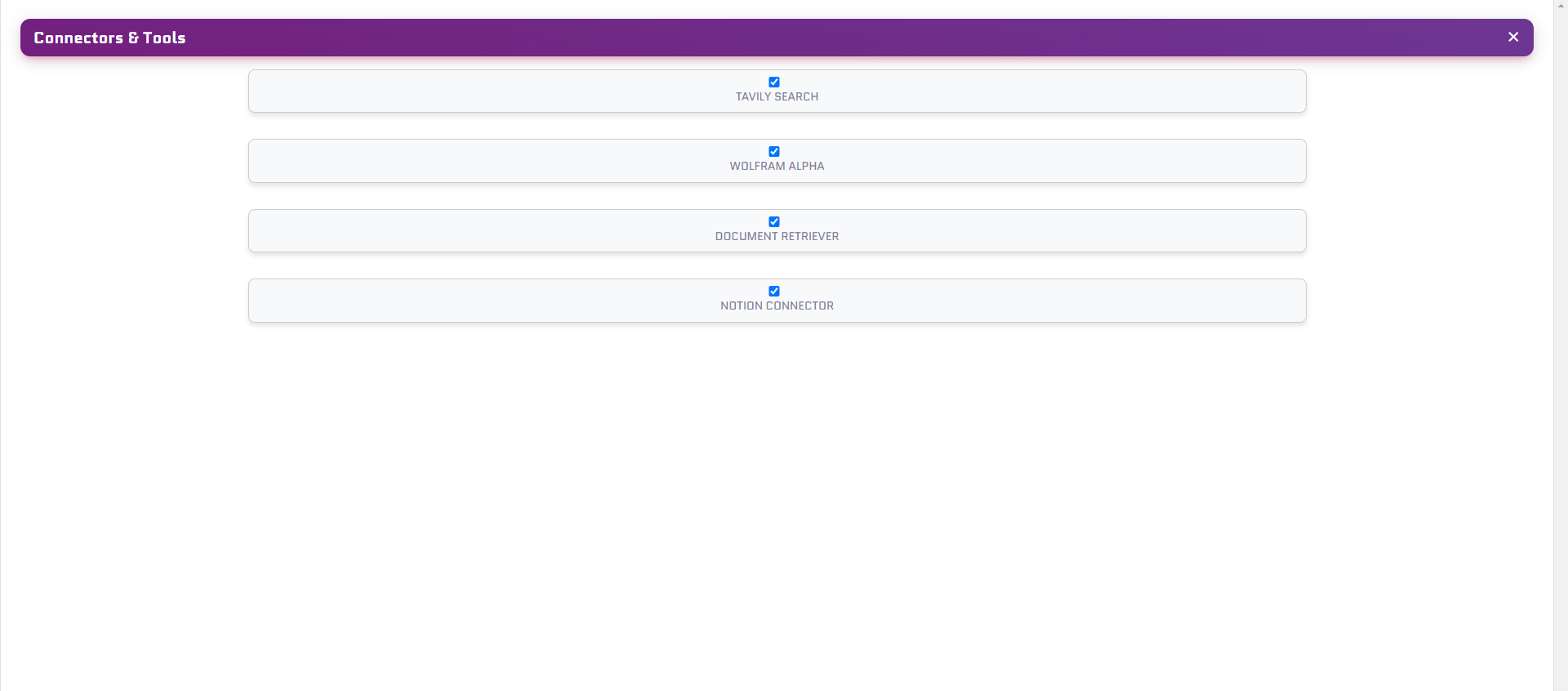
Connectors & Tools Panel Structure
| Element | Description |
|---|---|
| Help button | Opens contextual help about tools |
| ”Connectors & Tools” heading | Panel title |
| ”Control the Apps you connected or internally available” | Helper text |
Tool List
Each tool in the panel displays:- Checkbox - Toggle to enable/disable the tool for this conversation
- Tool Name (heading) - e.g., “MEMORY”, “KNOWLEDGE TEST5”
- Description - Brief explanation of what the tool does
- Tool Image - Visual icon representing the tool
Available Tool Types
MEMORY
Access the expert’s memory system for personalized responses
KNOWLEDGE
Query knowledge bases you’ve created for this expert
Web Search
Search the web for real-time information
API Connectors
External service integrations
Managing Active Tools
In the Tools panel, you can:- Enable/Disable individual tools with checkboxes
- View tool descriptions and capabilities
- Monitor tool usage in conversation
Tool Events in Chat
When your expert uses tools, you’ll see visual feedback:Web Search
Search result cards with titles, snippets, relevance
API Calls
Clean display of requests and responses
File Operations
Visual feedback for reads/writes
Calculations
Math and data processing results
Advanced: Deep Mode & HITL
DeepAgents Mode
Enable DeepAgents for a persistent workspace:Tasks
Create and track todos
Files
Read, write, manage files
HITL (Human-in-the-Loop)
When enabled, the agent asks for approval before actions: Auto Mode:🎯 Challenge Exercise
Complete these advanced chat tasks:Key Takeaways
Rich Interface
The chat interface has many powerful features - explore them all!
Multimodal
Voice, text, files, and images can all be combined
Memory
Teach your expert to remember important information
QA Training
Real conversations become training data
Next Steps
Workshop 4: Training
Learn to train and fine-tune your experts
Chat Documentation
Detailed chat feature reference