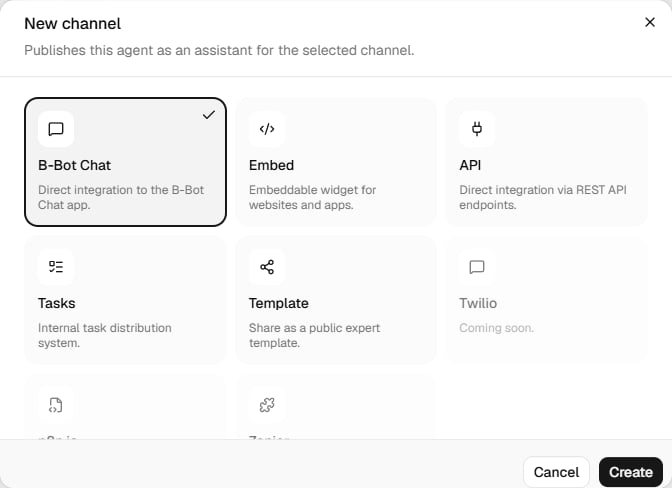
Distribution Channels

Distribution channels allow you to deploy your experts to different platforms and integrate them into various workflows. Choose the right channel for your use case and reach your users wherever they are.

Available Channels

B-Bot Chat

Direct integration to the B-Bot Chat application

Embed Widget

Embeddable chat widget for websites

API

REST API endpoints for custom integrations

Tasks

Scheduled and automated task execution

Template

Share in the public template marketplace

Coming Soon

Twilio, N8n, Zapier integrations

Selecting a Distribution Channel

Distribution channels are configured when creating or editing an assistant:
1

Create Assistant

Navigate to Assistant Manager for your expert
2

Reach Distribution Step

Proceed through the wizard to Step 5: Distribution Channels
3

Choose Channel

Select the distribution channel that fits your needs
4

Configure Settings

Each channel has specific configuration options
5

Review & Deploy

Finalize and deploy your assistant

Channel Details

1. B-Bot Chat

B-Bot Chat Channel Description: Direct integration with the B-Bot Chat application. Your expert appears in the chat interface and can be accessed by authorized users. Configuration:
  • Public/Private: Control who can access the expert
  • User Permissions: Set access levels
  • Visibility: Show in expert list or keep hidden
Best for:
  • Internal team communication
  • Customer support agents
  • Knowledge base queries
  • Quick access to AI assistance
Setup:
Channel: B-Bot Chat
Type: chat-integration
Public: true/false

2. Embed Widget

Embed Widget Channel Description: Embeddable chat widget that can be added to any website. Customizable appearance to match your brand. Configuration Options:
Style Presets:
  • Blank: Clean, minimal design
  • Bubble: Floating chat bubble
  • Sidebar: Slide-out panel
  • Fullscreen: Takes full page
Customization:
  • Primary color
  • Header icon (Lucide icons)
  • Bubble icon (profile image or custom icon)
  • Font family
  • Border radius
Options:
  • Auto-open delay
  • Welcome message
  • Greeting behavior
  • Mobile responsiveness
  • Position (bottom-right, bottom-left, etc.)
Embed Code:
<script>
  (function(w,d,s,o,f,js,fjs){
    w['B-BotWidget']=o;w[o] = w[o] || function () { (w[o].q = w[o].q || []).push(arguments) };
    js = d.createElement(s), fjs = d.getElementsByTagName(s)[0];
    js.id = o; js.src = f; js.async = 1; fjs.parentNode.insertBefore(js, fjs);
  }(window, document, 'script', 'bbot', 'https://embed.b-bot.ai/widget.js'));
  bbot('init', {
    assistantId: 'YOUR_ASSISTANT_ID',
    color: '#c0b283',
    style: 'bubble'
  });
</script>
Best for:
  • Website chat support
  • Product demos
  • Lead generation
  • Customer onboarding
  • Help centers
Customization Examples:
  • Minimal Style
  • Branded Bubble
  • Support Sidebar
{
  style: 'blank',
  color: '#667eea',
  position: 'bottom-right',
  headerIcon: 'message-circle'
}
Clean, professional look for corporate websites.

3. API Integration

API Channel Description: REST API endpoints for custom integrations. Build your own interface or integrate with existing systems. Endpoints:
# Create a new conversation
POST https://api.b-bot.ai/v1/threads

# Send a message
POST https://api.b-bot.ai/v1/threads/{thread_id}/messages

# Stream responses
GET https://api.b-bot.ai/v1/threads/{thread_id}/runs/{run_id}/stream

# Get conversation history
GET https://api.b-bot.ai/v1/threads/{thread_id}/messages
Authentication:
Authorization: Bearer YOUR_API_KEY
Example Request:
const response = await fetch('https://api.b-bot.ai/v1/threads', {
  method: 'POST',
  headers: {
    'Authorization': 'Bearer YOUR_API_KEY',
    'Content-Type': 'application/json'
  },
  body: JSON.stringify({
    assistant_id: 'asst_123',
    messages: [{
      role: 'user',
      content: 'Hello, how can you help me?'
    }]
  })
});
Best for:
  • Custom applications
  • Mobile apps
  • System integrations
  • Workflow automation
  • Advanced use cases
See also: API Reference

4. Tasks & Scheduling

Tasks Channel Description: Schedule your expert to run automatically at specific times or intervals. Configuration:
  • Schedule: Cron expressions or simple intervals
  • Input Data: Pre-defined prompts or dynamic data
  • Output Handling: Save results, send notifications, trigger webhooks
  • Workspace: Task-specific todos and files
Use Cases:

Daily Reports

Generate and email daily analytics reports

Data Processing

Process and analyze data files on schedule

Monitoring

Check systems and alert on issues

Content Generation

Create scheduled blog posts or social media
Example Schedule:
Daily at 9 AM: 0 9 * * *
Every hour: 0 * * * *
Weekdays at noon: 0 12 * * 1-5
Monthly report: 0 0 1 * *
Best for:
  • Automated reporting
  • Scheduled maintenance
  • Regular data processing
  • Periodic notifications
  • Batch operations

5. Template Marketplace

Template Channel Description: Share your expert as a public template that others can install and customize. Configuration:
  • Name: Template display name
  • Description: What your expert does
  • Category: Classification (Sales, Support, etc.)
  • Featured: Request to be featured in marketplace
  • Public: Make available to all users
  • Sales & Marketing
  • Customer Support
  • Development
  • Finance & Accounting
  • HR & Recruitment
  • Content Creation
  • Project Management
  • Data Analysis
  • Education
  • Other
When users install your template, they get:
  • Expert configuration
  • Abilities
  • Templates (quick prompts)
  • System prompt
  • Model preferences
  • App connections (if public)
Users must provide their own:
  • API keys
  • Private app credentials
  • Custom data
  • Training data
Best for:
  • Sharing expertise
  • Building a brand
  • Monetization (future feature)
  • Community contribution
  • Showcasing capabilities
Featured Templates:
  • Get more visibility
  • Appear on homepage
  • Increased installations
  • Community recognition

Combining Multiple Channels

You can create multiple assistants from the same expert, each with different distribution channels!
Example Multi-Channel Strategy:
Expert: "Customer Support AI"

├── Assistant 1: Live Chat (Embed Widget)
│   └── For website visitors

├── Assistant 2: Internal Tool (B-Bot Chat)
│   └── For support team

├── Assistant 3: API Integration (API)
│   └── For mobile app

└── Assistant 4: Reports (Tasks)
    └── Daily summary emails

Coming Soon

Twilio Integration

Status: In Development Connect your expert to SMS and WhatsApp:
  • Send/receive SMS messages
  • WhatsApp Business integration
  • Phone call handling (future)
  • Multi-number support

N8n.io Integration

Status: Planned Integrate with N8n workflow automation:
  • Trigger expert from N8n workflows
  • Process expert responses in N8n
  • Complex automation scenarios
  • Data transformation

Zapier Integration

Status: Planned Connect to 5,000+ apps via Zapier:
  • Trigger on new messages
  • Send expert responses to other apps
  • Automated workflows
  • No-code integration

Best Practices

Channel Selection

Consider Your Users

  • Website visitors: Embed widget
  • Mobile users: API integration
  • Internal team: B-Bot Chat
  • Automation: Tasks
  • Sharing: Template

Scalability

  • Embed and API scale automatically
  • B-Bot Chat limited by license
  • Tasks limited by schedule frequency
  • Templates grow organically

Maintenance

  • Embed requires website access
  • API needs development resources
  • Chat is low-maintenance
  • Tasks need monitoring
  • Templates are set-and-forget

Costs

  • All channels share expert costs
  • API may have higher usage
  • Embed limited by traffic
  • Tasks predictable costs
  • Templates don’t increase costs

Security Considerations

Important Security Notes:
  • Public channels: Anyone can access (embed, templates)
  • Private channels: Authenticated users only (chat, API)
  • Consider data sensitivity
  • Implement authentication where needed
  • Keep API keys secure
  • Use environment variables
  • Rotate keys regularly
  • Monitor API usage
  • Implement rate limiting
  • Review data handling policies
  • Consider GDPR/CCPA compliance
  • Document data retention
  • Implement user data deletion
  • Secure conversation history

Troubleshooting

Check:
  1. Script tag copied correctly?
  2. Assistant ID is valid?
  3. No JavaScript errors in console?
  4. CORS settings configured?
Solutions:
  • Verify embed code
  • Check browser console
  • Test in incognito mode
  • Contact support with errors
401 Unauthorized:
  • API key missing or invalid
  • Key expired or revoked
  • Wrong authorization header
403 Forbidden:
  • Insufficient permissions
  • Assistant not accessible
  • Rate limit exceeded
Verify:
  • Schedule syntax correct?
  • Task enabled?
  • No errors in last run?
  • API keys valid?
Debug:
  • Check task execution logs
  • Test with manual run
  • Verify cron expression
  • Review error messages

Next Steps