Settings & Configuration

Customize your B-Bot Hub experience, manage API keys, configure preferences, and control your account settings. Access settings throughout the application for contextual configurations.

Settings Locations

Profile Settings

User account and preferences

Chat Settings

Per-conversation configurations

Expert Settings

Individual expert configurations

Profile Settings

Access via Profile in the main sidebar.

Account Information

Manage:
  • Name and email
  • Profile picture
  • Display preferences
  • Contact information
Update:
  1. Navigate to Profile
  2. Click Edit
  3. Update fields
  4. Save changes
Security settings:
  • Password management
  • Two-factor authentication (if enabled)
  • Active sessions
  • Login history
Best practices:
  • Use strong passwords
  • Enable 2FA when available
  • Review active sessions regularly
  • Log out unused devices
Manage B-Bot tokens:
  • Generate new API tokens
  • View existing tokens
  • Revoke access
  • Set expiration dates
Use tokens for:
  • API integrations
  • Custom applications
  • Automation scripts
  • Third-party tools
Learn more: B-Bot Tokens

Provider Keys Management

Centralized API key management for all AI providers:
1

Access Provider Keys

Profile → Provider Keys section
2

Add Keys

Click Add New Key and select provider
3

Configure

  • Enter API key
  • Set nickname
  • Mark as primary/fallback
4

Manage

Edit, delete, or validate keys
Supported providers:
  • LLM: OpenAI, Anthropic, Google, Mistral, DeepSeek, Cohere, Groq, Azure, and more
  • Voice: ElevenLabs, OpenAI TTS, Google TTS, Azure Speech
  • Image: Stability AI, Midjourney, OpenAI DALL-E
Learn more: Provider Keys Management

Preferences

  • Appearance
  • Notifications
  • Language & Region
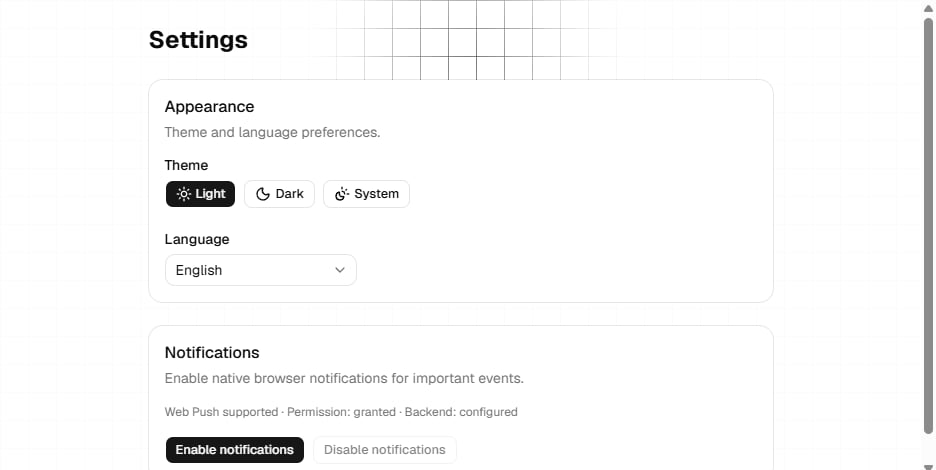
Customize the interface:
  • Theme: Light, Dark, or Auto
  • Color Scheme: Primary color selection
  • Density: Compact or Comfortable
  • Font Size: Adjust readability
Accessibility:
  • High contrast mode
  • Reduced motion
  • Screen reader optimizations

Company & Workspace

Enterprise Feature: Available for team and enterprise plans
Manage organizational settings:
  • Company name
  • Industry
  • Company size
  • Logo and branding
  • Billing information
  • Invite users
  • Assign roles
  • Manage permissions
  • View activity
  • Remove members
Roles:
  • Admin: Full access
  • Member: Standard access
  • Viewer: Read-only
  • Custom: Define permissions
For agencies managing multiple clients:
  • Client account management
  • Separate workspaces
  • White-label options
  • Billing per client
  • Usage tracking

Chat Settings

Per-conversation configuration - Access via the settings icon in chat interface.

Model Parameters

  • Temperature
  • Max Tokens
  • Top P
Controls randomness and creativity
  • Range: 0.0 to 2.0
  • Default: 0.7
  • Low (0.0-0.3): Focused, deterministic
  • Medium (0.4-0.8): Balanced
  • High (0.9-2.0): Creative, varied
Use cases:
  • Low: Code generation, data analysis, factual queries
  • Medium: General conversation, customer support
  • High: Creative writing, brainstorming, storytelling

Advanced Settings

Override system prompt:Add custom instructions for this conversation:
Be extra concise in your responses.
Use bullet points when possible.
Cite sources for factual claims.
When to use:
  • Specific conversation style
  • Temporary behavior changes
  • Testing prompt variations
Isolated mode:
  • Uses your personal API keys
  • Separate from expert’s learning
  • Private app credentials
  • No data sharing
Use for:
  • Personal accounts access
  • Sensitive operations
  • Testing without affecting expert
  • Privacy-critical tasks
Enable workspace features:
  • ✅ Todo management
  • ✅ File system
  • ✅ State persistence
  • ✅ HITL mode
Toggle options:
  • Auto Mode: Agent works independently
  • HITL Mode: Requires approval for actions
Learn more: DeepAgents Workspace

Tool Configuration

Enable/disable expert’s tools and apps:
1

Open Tools Panel

Click tools icon in chat top bar
2

View Available Tools

See all connected apps and capabilities
3

Toggle Tools

Enable or disable specific tools for this conversation
Built-in tools:
  • Web search
  • Code execution
  • Image generation
  • File analysis
  • Calculations
Connected apps:
  • Google Workspace
  • Slack
  • GitHub
  • Notion
  • Custom integrations

Expert Settings

Configure individual expert behavior - Access when creating or editing experts.

Core Configuration

  • Basic Info
  • Models
  • Abilities & Templates
  • Apps & Team
  • Name: Expert’s display name
  • Profession: Expert’s role
  • Type: Expert category
  • Description: What the expert does
  • System Message: Core personality and instructions

Model-Specific Settings

Each model can have custom settings:
{
  temperature: 0.7,
  top_p: 0.95,
  max_tokens: 4000,
  frequency_penalty: 0.0,
  presence_penalty: 0.0,
  stop_sequences: ["###"]
}
Provider-specific parameters:
  • OpenAI: frequency_penalty, presence_penalty
  • Anthropic: top_k, stop_sequences
  • Google: candidate_count, stop_sequences
  • Custom models: Additional parameters in JSON

Global Settings

Application-wide configurations:

Data & Privacy

Control how long data is kept:
  • Conversation history
  • File uploads
  • Workspace data
  • Execution logs
Options:
  • 7 days
  • 30 days
  • 90 days
  • 1 year
  • Forever
Manage data usage:
  • Opt out of analytics
  • Disable telemetry
  • Control data sharing
  • GDPR compliance
Data portability:
  • Export all data
  • Download conversations
  • Export configurations
  • Delete account
Track your usage:
  • API calls per day
  • Token consumption
  • Cost breakdown
  • Expert performance
View in dashboard:
  • Real-time metrics
  • Historical trends
  • Cost projections
  • Usage alerts

Integrations

Webhooks

Configure webhooks for:
  • Task completions
  • Expert responses
  • Error notifications
  • Custom events

API Access

Manage API integrations:
  • Generate tokens
  • View documentation
  • Test endpoints
  • Monitor usage

Best Practices

Security

Keep your account secure:✅ Do:
  • Use strong passwords
  • Enable 2FA
  • Rotate API keys regularly
  • Review access logs
  • Use provider keys wisely
❌ Don’t:
  • Share credentials
  • Commit keys to code
  • Use same password everywhere
  • Ignore security alerts

Cost Management

Control your spending:✅ Do:
  • Set usage alerts
  • Monitor token consumption
  • Use appropriate models
  • Optimize prompts
  • Archive old data
❌ Don’t:
  • Use expensive models unnecessarily
  • Ignore cost warnings
  • Run unmonitored tasks
  • Keep unlimited retention

Performance

Optimize experience:✅ Do:
  • Use appropriate model sizes
  • Configure timeouts
  • Cache frequent queries
  • Monitor response times
  • Clean workspace files
❌ Don’t:
  • Overload with apps
  • Use max tokens always
  • Ignore slow responses
  • Keep stale data

Organization

Stay organized:✅ Do:
  • Name experts clearly
  • Document configurations
  • Tag conversations
  • Archive completed work
  • Regular cleanup
❌ Don’t:
  • Use generic names
  • Forget to document
  • Hoard everything
  • Ignore workspace limits

Troubleshooting

Possible causes:
  • Network connectivity issues
  • Session expired
  • Invalid values
  • Permission errors
Solutions:
  • Refresh page and try again
  • Check all required fields
  • Log out and back in
  • Clear browser cache
If keys not working:
  1. Verify key is correct
  2. Check provider dashboard
  3. Validate key hasn’t expired
  4. Ensure proper permissions
  5. Try re-adding the key
See also: Provider Keys Troubleshooting
If Hub is slow:
  • Clear browser cache
  • Disable unnecessary apps
  • Reduce active conversations
  • Check network speed
  • Try different browser
Optimize:
  • Use lighter models
  • Reduce token limits
  • Clean workspace regularly
  • Limit concurrent tasks

Next Steps